AI Provider Keys
Updated Jul 21, 2026
AIAI Provider Keys
The AI Assistant and DataMagik's other AI features run on a cloud AI provider that you supply a key for. On this page you add your own OpenAI, Anthropic (Claude), or Google Gemini API key and choose which one is active. Keys are encrypted at rest and never returned to the browser.
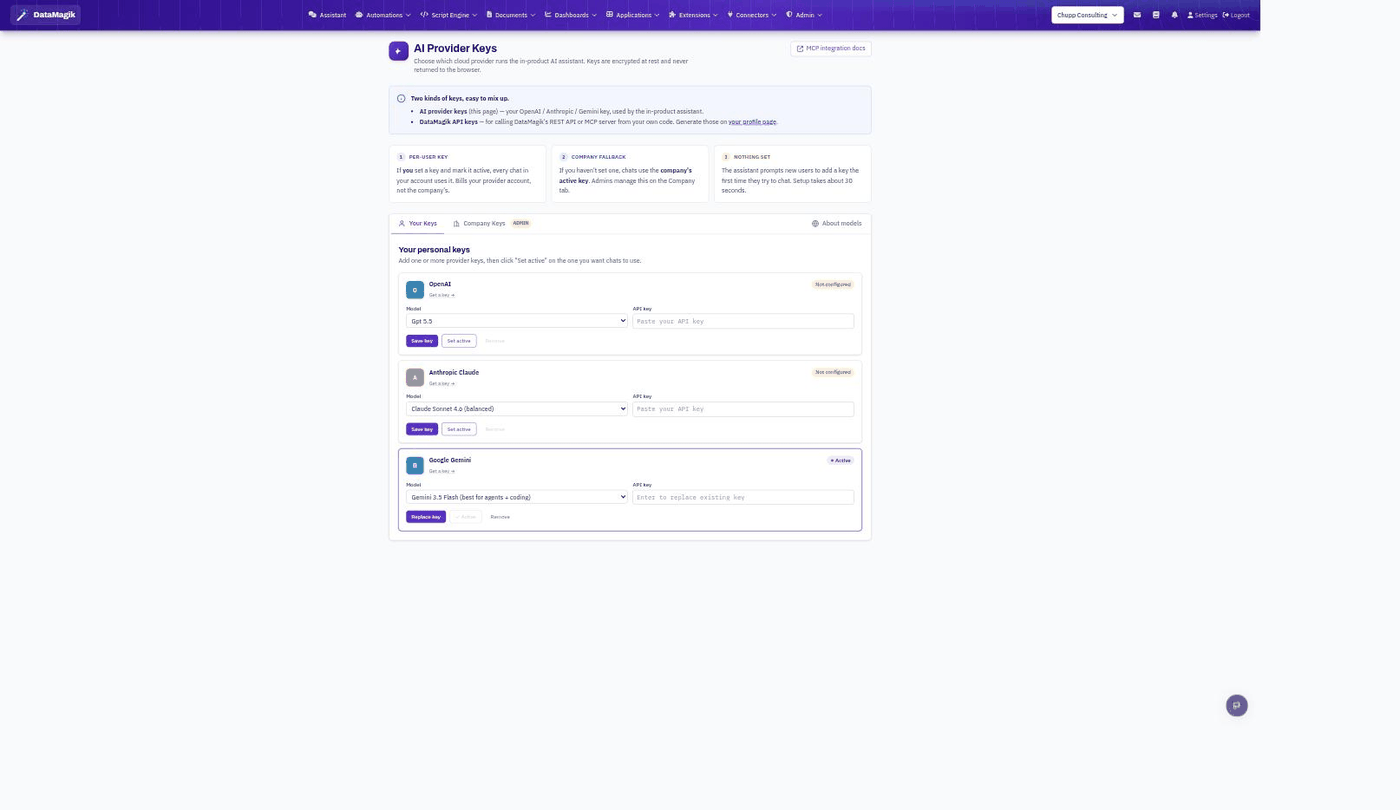
Two kinds of keys — easy to mix up. The keys on this
page are AI provider keys (your OpenAI / Anthropic / Gemini key that runs the
assistant). They are different from DataMagik API keys (the
dcp_ keys
under Your Account > API Keys that let external systems call
DataMagik's own API and MCP server).Your keys vs. company keys
There are two tabs:
- Your Keys — a personal key. If you set one active, every chat in your account uses it and bills your provider account, not the company's.
- Company Keys (admin) — a shared fallback. If you haven't set a personal key, chats use the company's active key. Admins manage this tab.
The order of preference is: your active personal key first, then the company key. If neither is set, the assistant prompts new users to add one the first time they open it.
Adding a key
- Choose the provider card (OpenAI, Anthropic Claude, or Google Gemini).
- Pick a Model from the dropdown.
- Paste your provider API key into the API key field and click Save key.
- Click Set active on the provider you want chats to use. The active card is marked Active.
Where to get a key: each card links to its provider's
key page. A key grants billable API access to that provider, so store it securely and rotate it if it
is ever exposed. To replace an existing key, type the new value over it and click Replace
key.
Related: Use the assistant in
AI Assistant; configure what assistants can do in
Managing AI Assistants; watch spend in
AI Token Usage.