Previewing, printing and saving to Plex
Previewing, printing and saving to Plex
See exactly what will print, then save your changes to Plex with nothing hidden.
Preview
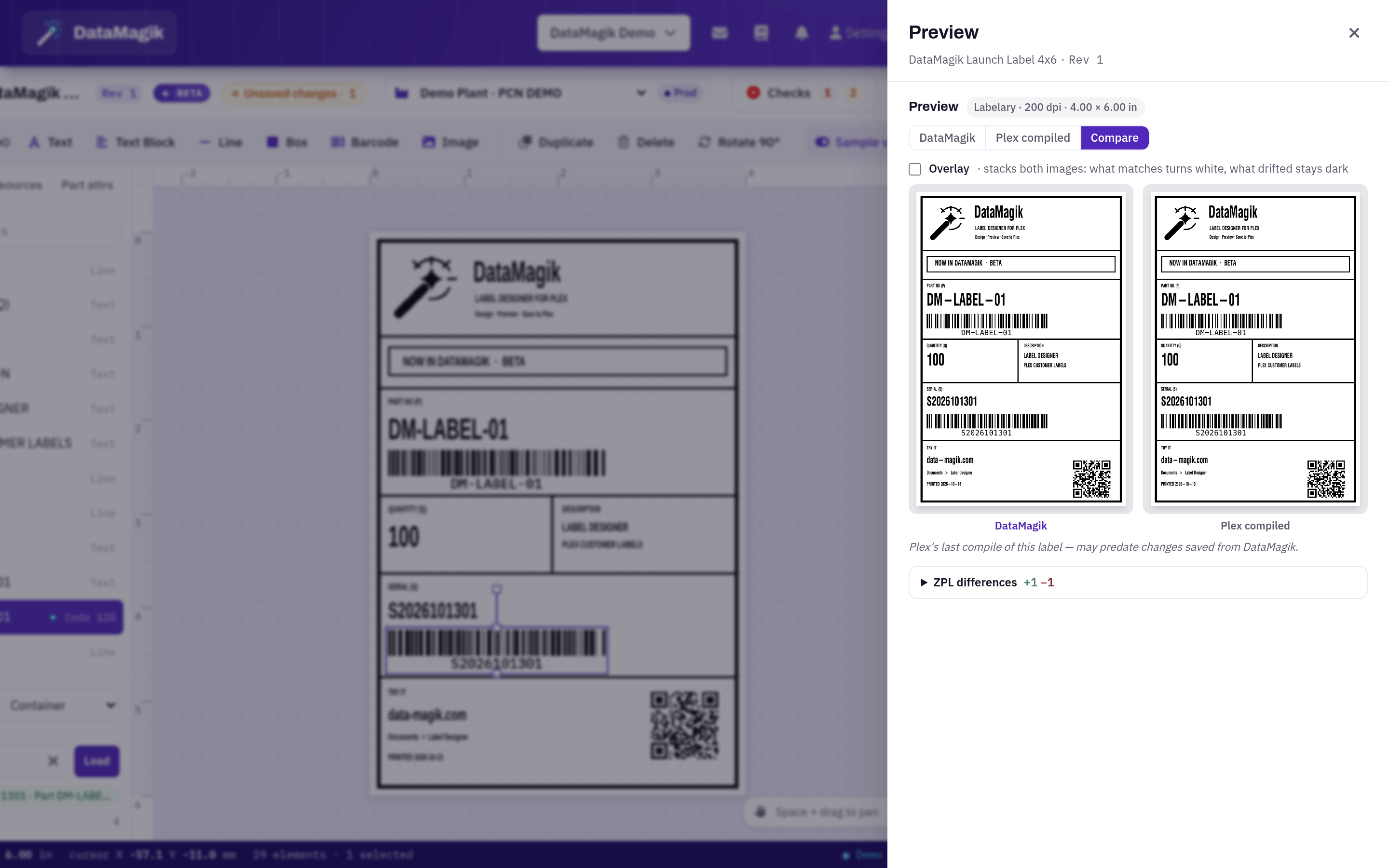
Preview generates the label's ZPL — the language Zebra printers use — and renders it, so you see the printed result rather than an approximation. It uses the sample values you loaded or typed. Copy ZPL copies the generated code.
The preview has three views:
- DataMagik — the label as DataMagik will print it, including your unsaved changes.
- Plex compiled — the ZPL Plex stored the last time the label was compiled in Plex. Not every label has one; if it is empty, the preview says so.
- Compare — both side by side, with an Overlay option that stacks them so any difference stands out, and a line-by-line ZPL comparison.
Test print
Choose a printer and the number of copies, then Test print. The job goes to your Zebra printer through the DataMagik connector on your network, using the current sample values. Test prints are recorded in the change log.
Save to Plex
Nothing is written to Plex until you choose Save to Plex. The review drawer then shows, before anything runs:
- the checks, with errors first;
- a warning naming the company, PCN connection and environment the save will write to;
- the Plex operations in order — each Plex data source and its UX key — that the save will call;
- a preview of the result, and a box for a revision note.
If the checks found errors, tick Save anyway — I've reviewed these to enable the save. Warnings never block a save.
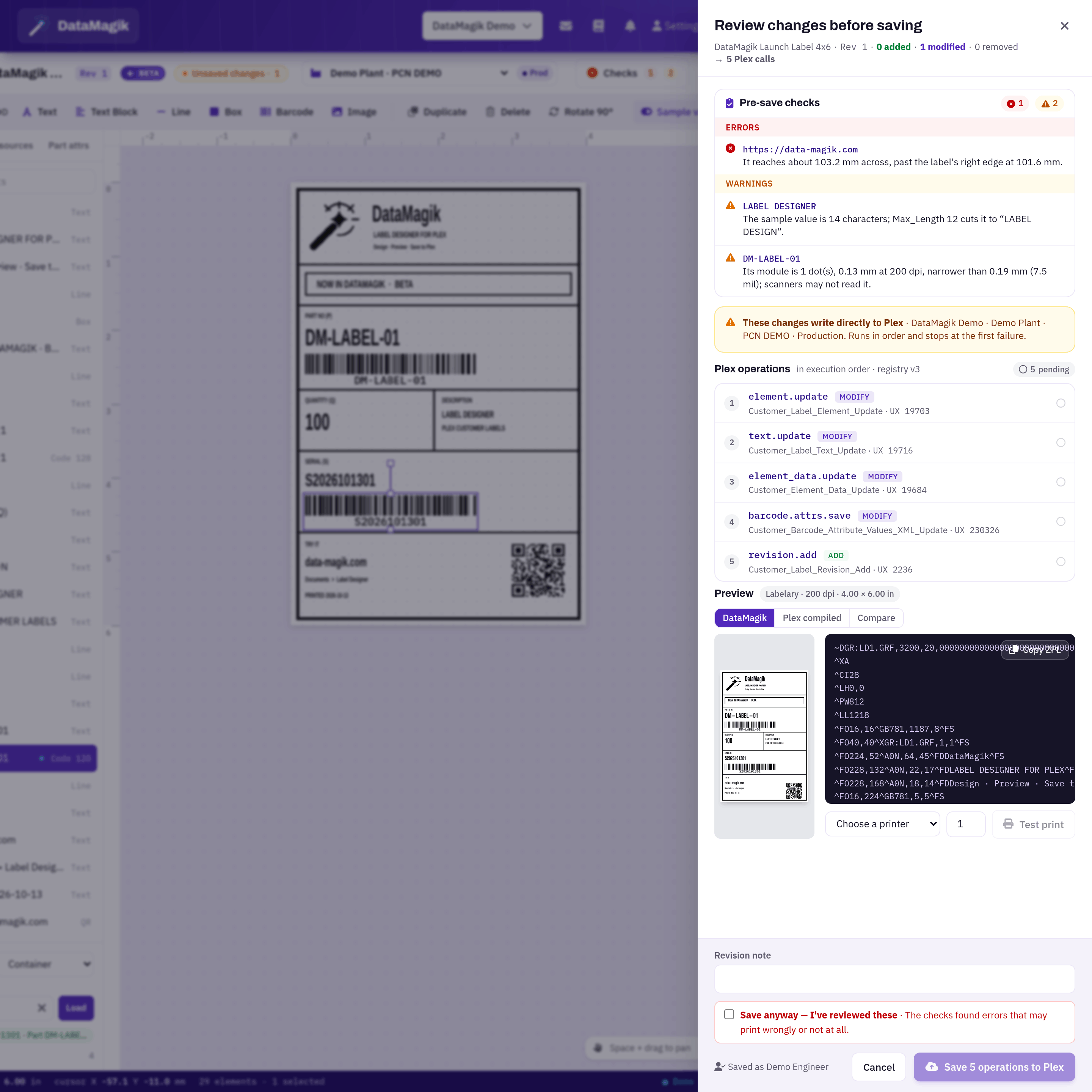
The save runs the operations in order and stops at the first one Plex refuses, reporting which one and why. If a new element was half-created when that happened, DataMagik removes it again. A completed save writes a revision to Plex with a snapshot of the label, and records the change in the DataMagik change log under your name.
If someone else — in DataMagik or in Plex — changed the label after you opened it, the save stops before writing anything and offers to reload, so you never overwrite their work.
Revision history and restore
The history button (clock icon) lists the label's revisions, newest first, including those written by other tools. Choose a revision to restore it: DataMagik works out the changes needed to return the label to that revision and shows them in the same review drawer before anything is saved.
Plex stock elements
Some label formats carry standard elements from Plex's own format. When a label has stock elements that are not yet customer elements, the editor offers to convert them so you can edit them.