Approvals
Approvals
Review and decide the tasks that automations and AI agents route to you.
Some automations pause to ask a person before continuing — approve a document, authorize a change, or sign off on a step. AI agents ask the same way before they change anything. Those requests land in your Approvals inbox, reached from the envelope icon in the top navigation bar. A badge on the icon shows how many tasks are waiting for you.
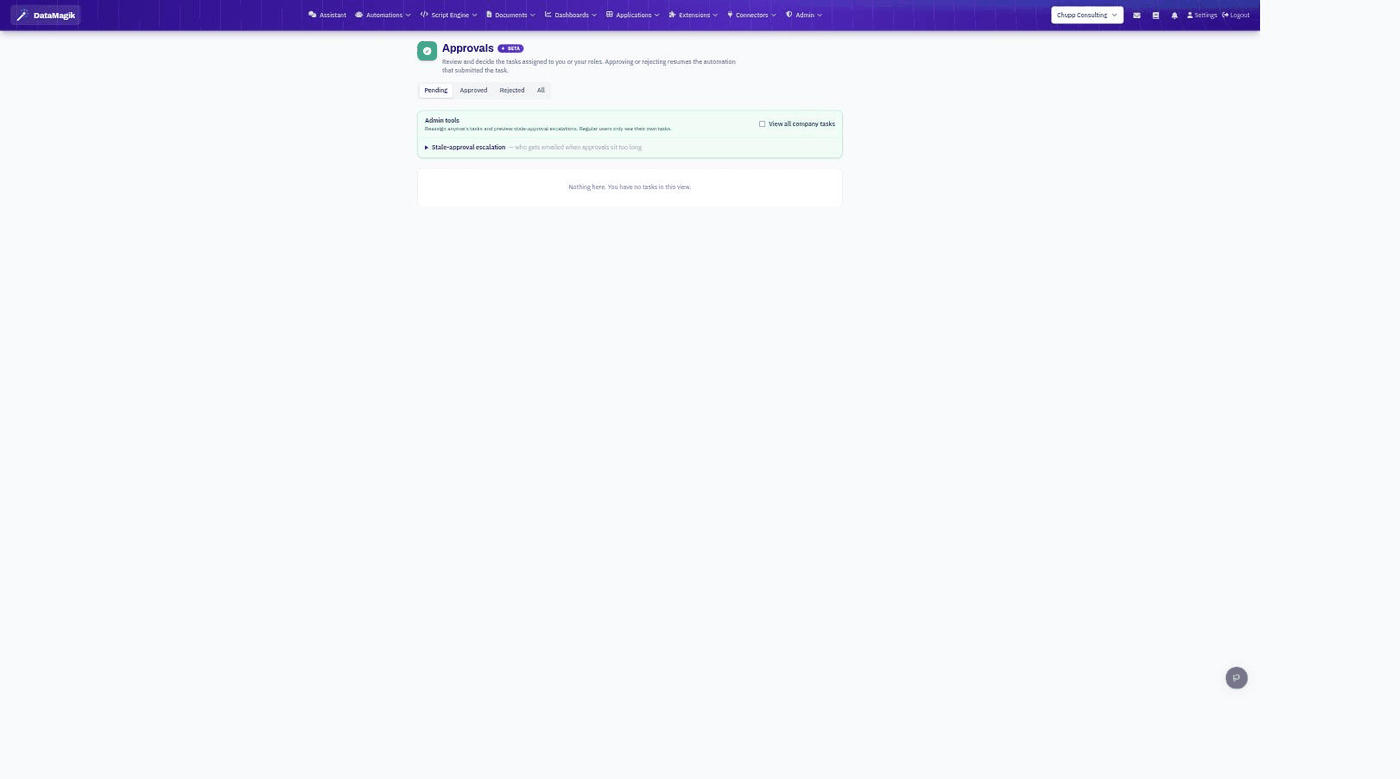
Your inbox
- The Pending, Approved, Rejected, and All tabs filter the list by status.
- You only see tasks assigned to you or to a role you hold.
- Open a task to see its details and any attached document, then Approve or Reject it.
- To decide several simple tasks at once, tick them and use Approve selected or Reject selected.
Deciding a task
Approving or rejecting a task resumes the automation that submitted it: an approval lets the workflow continue, while a rejection stops or branches it, depending on how the automation is built. Every decision is recorded with your identity.
Changes proposed by AI agents
An AI agent that asks before changing anything files each change as a proposal to the role chosen as its approver. In the inbox a proposal shows the agent's name, what it wants to do and a line of evidence. Press Review to open it and see the change and what the agent saw, then Approve & apply or Reject. An email the agent wants to send shows Review & send; it is approved only from its review page, never in bulk, so you always see the message before it goes.
Links in Teams, Slack or email notifications bring you here to sign in and review; nothing is approved from the message itself. See AI Agent Approvals, Safety & Monitoring for the full review page.
Admin tools
Administrators get extra controls — view all company tasks, reassign a task to another person, and preview stale-approval escalation (who is emailed when a task sits unanswered too long).
Who can use it: any signed-in user can open the inbox; the list only ever shows the tasks assigned to you or your roles.