Plex Label Designer
Updated Oct 15, 2026
DataMagik DocumentsPlex Label Designer
Design Plex customer label formats in your browser, preview exactly what the printer will produce, and save straight back to Plex.
Open Documents → Label Designer. The Label Designer edits the customer label formats stored in your Plex PCN — container, master unit, gage, location, supply and part labels. Your labels stay in Plex: DataMagik reads them, lets you edit them visually, and writes your changes back through Plex's own data sources.
What you can do
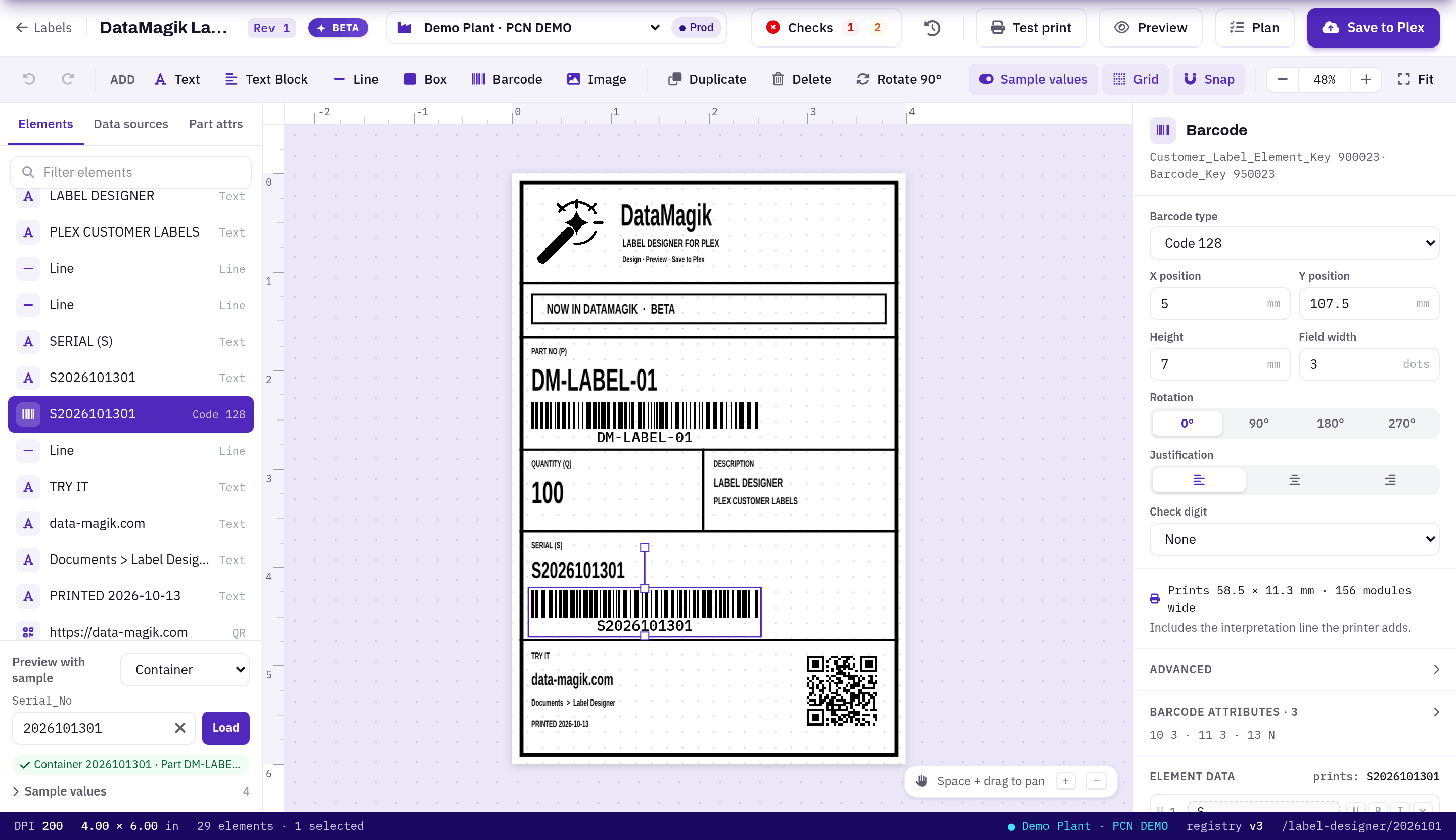
- Design visually — text, text blocks, lines, boxes, barcodes (Code 39, Code 128, ITF, UPC-A, PDF417, QR, Data Matrix) and images, with rulers, a grid, snapping, rotation and undo.
- Bind to Plex data — drag a column from any label data source onto an element, or search every data source for a field by name.
- Preview with real data — load a real container or other record from Plex, fill in any other values yourself, and see them on the canvas.
- Catch problems before printing — pre-save checks flag elements off the label, overlaps, values that will be cut off, barcodes too thin to scan and fields that no longer exist.
- See the exact output — a pixel-accurate ZPL preview, a side-by-side compare with Plex's own compiled label, and test prints to your Zebra printers.
- Save safely to Plex — every save shows the exact Plex calls it will make, keeps a revision history you can restore, and is recorded in the DataMagik change log.
Guides
- Setting up the Label Designer — PCN connections, credentials and data source access.
- Designing labels — the editor, elements, data and sample values.
- Previewing, printing and saving to Plex — checks, preview, test print, saving and revisions.
- Administration and AI access — the data source registry and the MCP tools.
Access: The Label Designer is a licensed feature (Beta). It needs the Label Designer licence for your company and the DataMagik - Builder permission.