Setting up the Label Designer
Setting up the Label Designer
Connect the Label Designer to your Plex PCN and make sure Plex lets it read and save labels.
Before you start
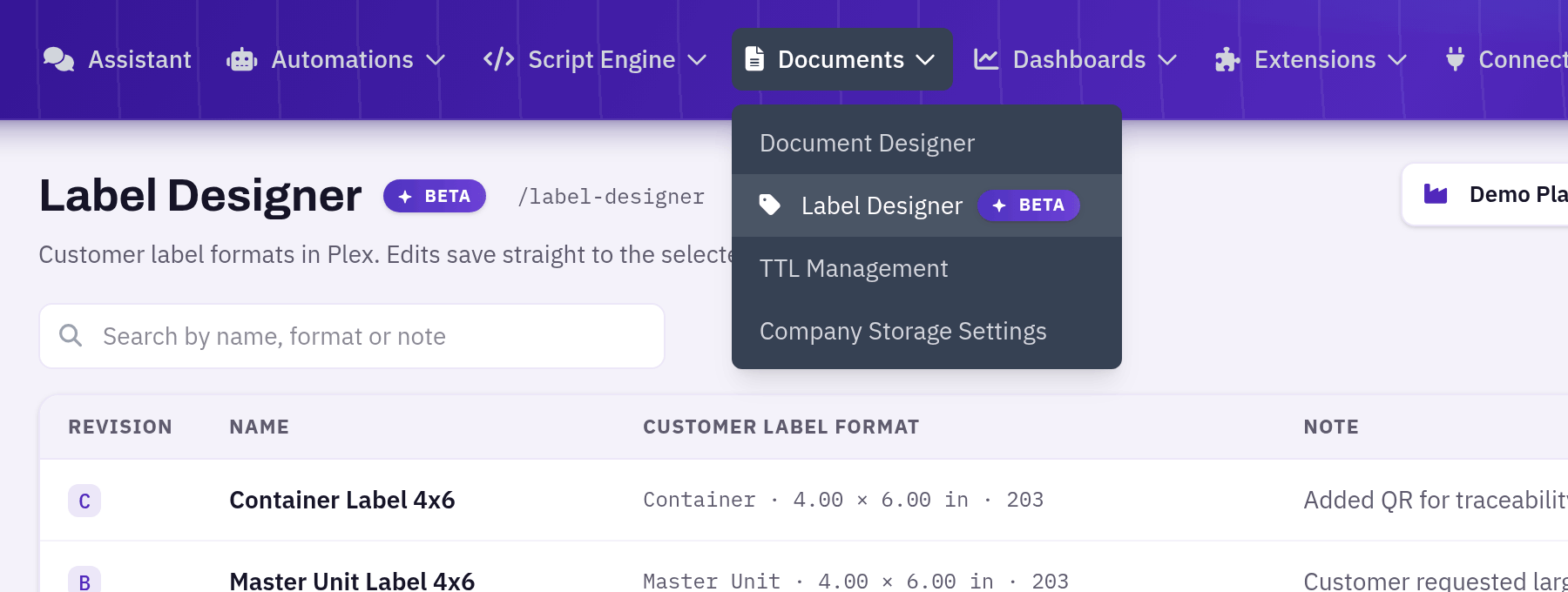
- Your company needs the Label Designer licence, and you need the DataMagik - Builder permission. Without both, the menu entry does not appear.
- You need a basic_auth credential for a Plex web-service login, saved under Script Engine → Credentials. The password never leaves the DataMagik server; the browser never sees it.
Add a PCN connection
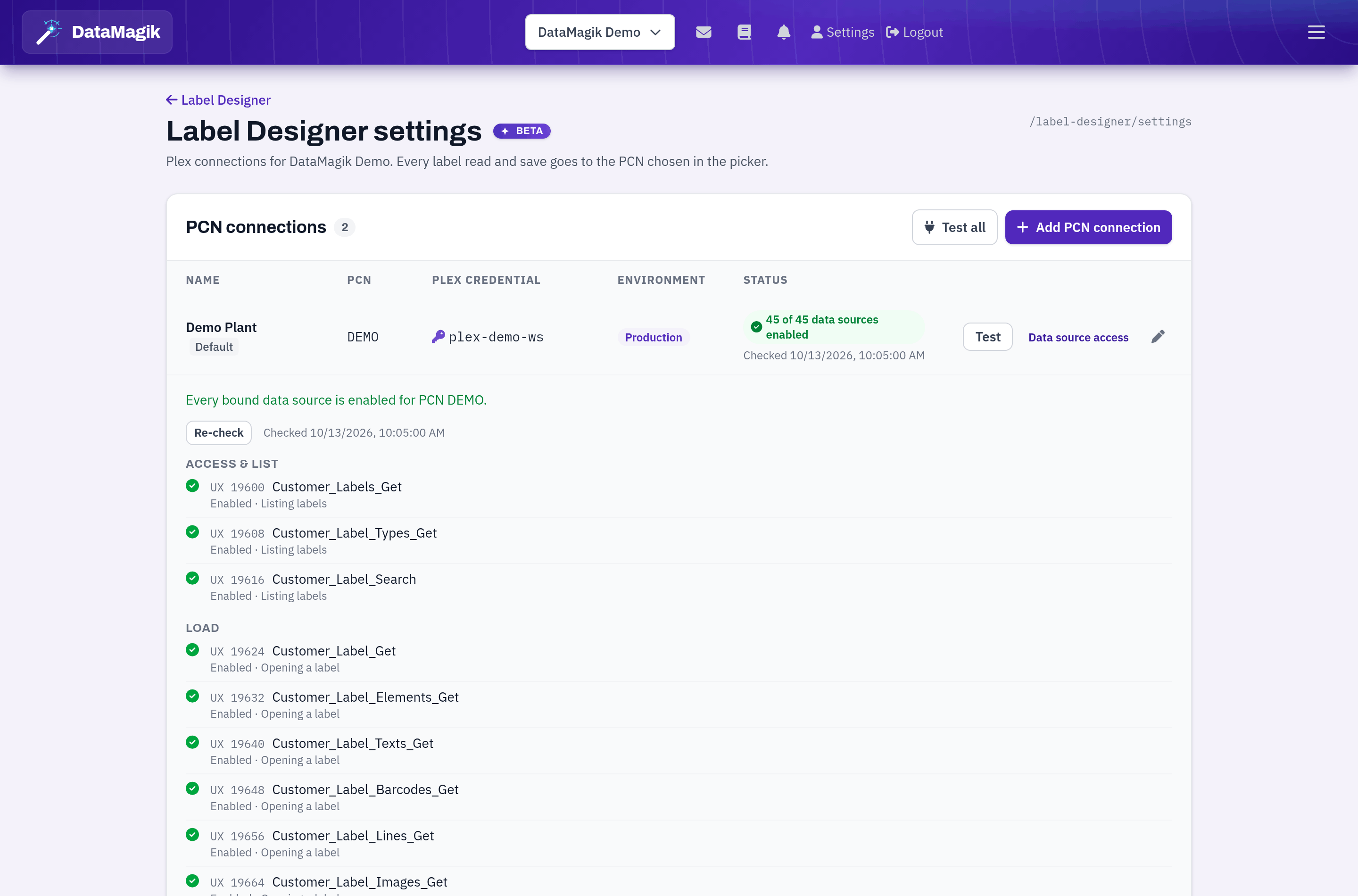
Open Label Designer → Settings (the gear icon) and choose Add PCN connection:
- Name — how the connection shows in the picker, for example Elkhart Plant.
- PCN — the Plex company code, as it appears in your Plex URL (letters, digits and hyphens).
- Plex credential — pick the web-service credential from the list. Only basic_auth credentials are offered; if there are none, the form links to the credentials screen.
- Use the Plex test environment — tick this for a test PCN.
- Default connection — the connection the label list opens with.
A company can have several PCN connections — one per plant, or a production and a test PCN. Pick the PCN at the top of the label list and the editor; every read and save goes to the PCN chosen there.
Check data source access
Plex only runs the data sources your web-service login has been granted. Press Test on a connection: DataMagik asks Plex which data sources the login can use — without running any of them — and shows N of M data sources enabled.
- Enabled — Plex has granted it.
- Needs enabling — ask your Plex administrator to enable it for the web-service login. Copy list gives you a plain-text list to send them.
- Denied — Plex refused a real call. DataMagik records this and stops using the source until Plex grants it again.
Features that depend on a missing source are switched off with a clear message (for example "saving barcode attributes is unavailable"), and the label list and editor show an amber banner until the source is enabled. Test again once Plex has made the change — the check can be repeated once a minute.
Data sources the Label Designer uses
For reference, these are the Plex UX data sources a full setup needs. Copy list on the settings page produces the same list for your PCN.
| Purpose | UX data sources |
|---|---|
| Listing and opening labels | 2012, 19689, 19942, 2169, 19878, 19699, 19686, 19748, 19836, 19743, 19733 |
| Pickers and catalogs (barcode types, images, label data sources and columns, part attributes) | 19676, 19668, 22798, 19723, 19867, 2342 |
| Sample data (container, master unit, gage, location, supply, part) | 5960, 5737, 5012, 3507, 2554, 6215 |
| Saving the label header | 2228 |
| Saving elements, text, barcodes, lines and images | 19700, 19701, 19703, 19714, 19717, 19718, 19690, 19693, 19709, 19712, 19713, 19704, 19707, 19708 |
| Saving element data | 19682, 19683, 19685 |
| Saving barcode attributes | 19677, 19680 |
| Revision history | 5650, 1201 |
Good to know: label data sources and their columns are the same for every Plex customer, so DataMagik caches them for 24 hours — opening the Data sources tab is quick after the first time.