Spreadsheet to Plex
Spreadsheet to Plex
Send the rows of an Excel or CSV file to a Plex data source: each row becomes one change in Plex.
Open Spreadsheet to Plex in the menu. The screen, Update Plex from a spreadsheet, has five steps on one page. Each finished step shows a summary and a Change button, so you can go back to it. The band at the top always shows where the rows go, for example Sending to Plex test · SEEDCO-WS, and turns orange for Plex live.
You need a web service credential whose data sources have been refreshed. See Getting started with DataMagik Desktop.
Try it on Plex test first: send the same sheet to Plex test before you send it to Plex live. DataMagik Desktop remembers your last credential, environment and data source, so next time you start at step 3.
1. Connect to Plex
- Choose the Plex credential.
- Under Send the changes to, choose Plex test (try changes safely; nothing changes in production) or Plex live (production) (changes your real Plex data).
- Choose Continue.
2. Choose what to update
Pick a Data source: a Plex web service that reads or writes one kind of record. You can type to search the list. When you pick one, its description, its inputs and outputs are shown. Inputs marked * need a value in every row.
The list holds the data sources Plex allows for your credential. If one is missing, ask Plex Support to grant it, then choose Refresh data sources here. Choose Continue when you have picked one.
3. Load your spreadsheet (.xlsx or .csv)
Put the column names in the first row, named like the data source's inputs. In an Excel workbook, the sheet goes on a tab called Upload Template. A CSV file has the column names in its first line.
- Get a template for (the data source) saves an Excel file with a column for each of the data source's inputs, already on the right tab.
- Choose a file opens your spreadsheet, or drop an Excel or CSV file onto the box.
The summary shows the file name, the number of rows and how many columns matched the data source's inputs.
4. Check the rows before sending
DataMagik Desktop checks every row before anything is sent and tells you what it found:
- How many rows are ready to send.
- Rows missing a required value, or with text where Plex expects a number. These rows are skipped unless you fix them in the sheet.
- Required columns missing from your sheet. Plex needs them, so add them to the sheet or use the template; you can't continue until you do.
- Optional columns that aren't in your sheet. Plex keeps today's values for them.
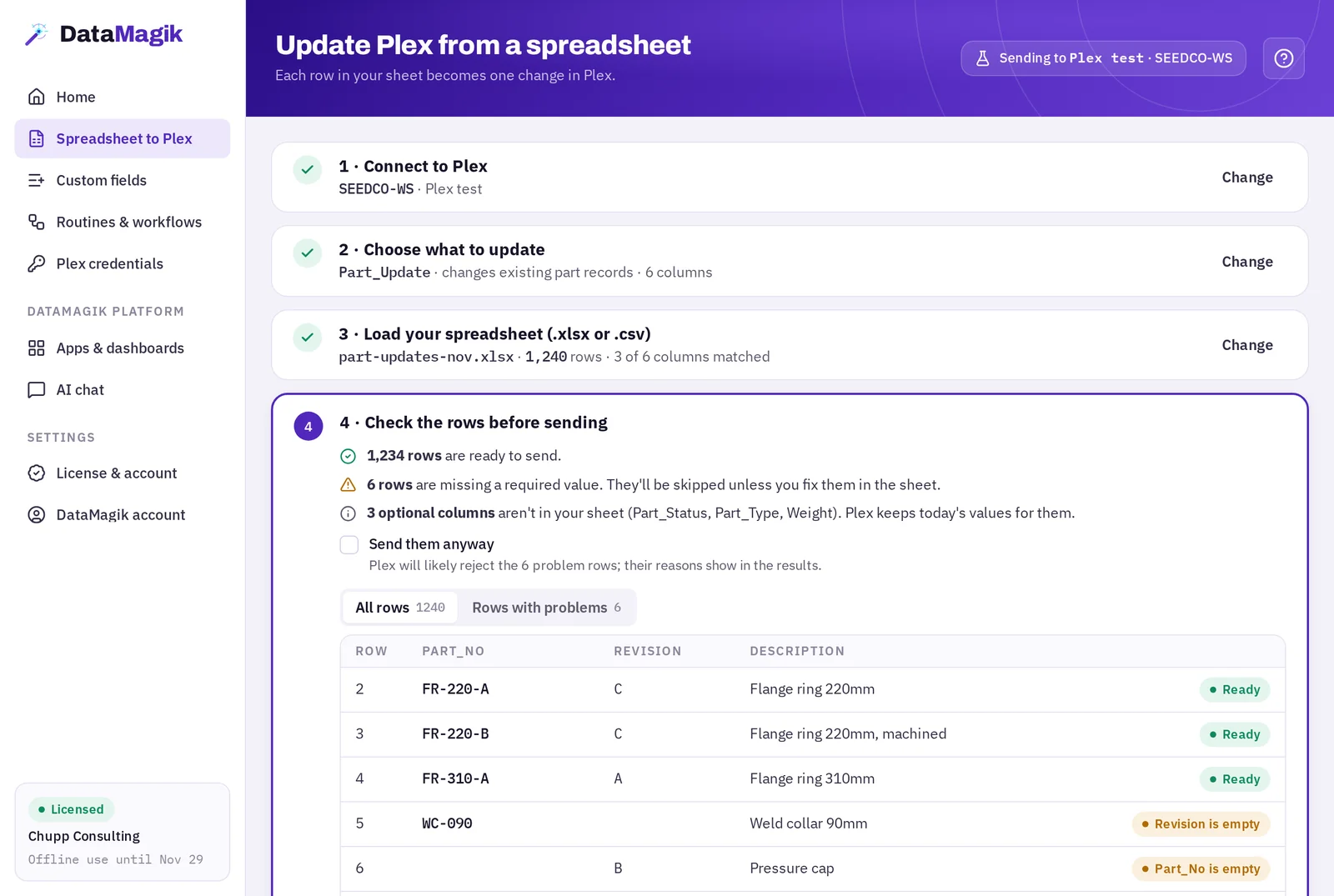
Problem rows are listed with the reason, and left out of the send.
The table shows every row with Ready or its problem. Rows with problems shows only those. Save the problem rows saves them to an Excel file so you can fix them. To send them anyway, tick Send them anyway; Plex will likely reject them, and their reasons show in the results. Choose Looks right, continue.
5. Send to Plex
The step says how many rows go where, and with which credential.
- Try the first row on Plex test sends only the first row to Plex test and tells you whether it worked, with Plex's reason when it didn't.
- Send N rows to Plex test (or to Plex live (production)) sends them all.
For Plex live, DataMagik Desktop asks once more: type the number of rows to confirm, then choose Send to Plex live. These changes can't be undone from DataMagik Desktop.
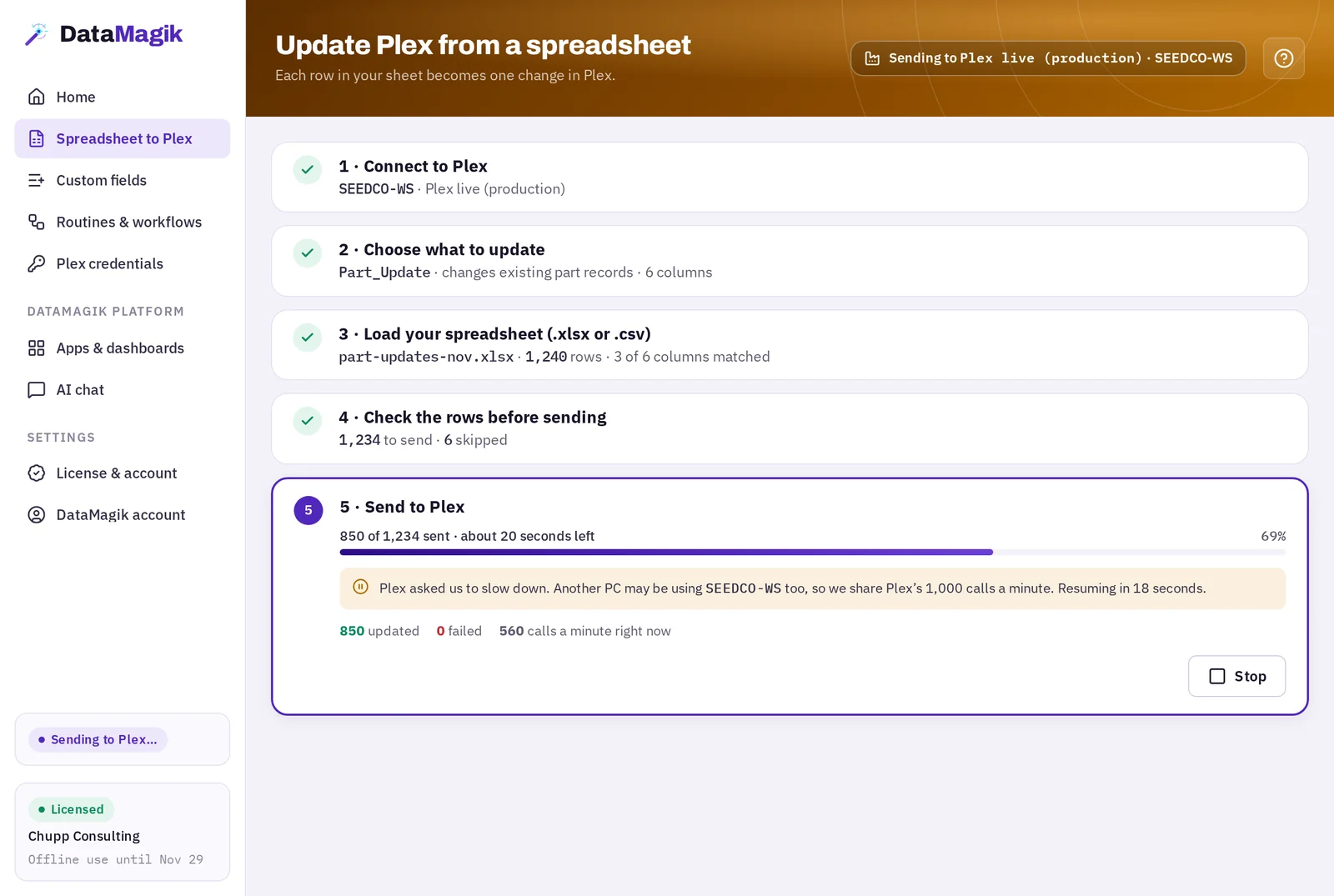
Sending to Plex live. The band turns orange.
While it sends, you see the progress, about how long is left, how many rows were updated and failed, and how many calls a minute it is making. If Plex asks DataMagik Desktop to slow down (another PC may be using the same credential), it pauses and says when it resumes. You can leave the screen while it sends; Sending to Plex… at the bottom of the menu brings you back.
Stopping a send
Choose Stop. The rows already on their way finish first, and the rows after that are not sent. The results of the rows that were sent are kept, and you can save them.
If you close DataMagik Desktop while a send is running, it asks Close DataMagik Desktop? first. Keep it running carries on; Close anyway closes it, and the rows not yet sent won't be sent.
Results
When the send finishes, a sentence says how it went, for example All 1,234 rows went to Plex test. The table lists each row with what Plex said and Updated or Failed. Failed shows only the rows Plex refused.
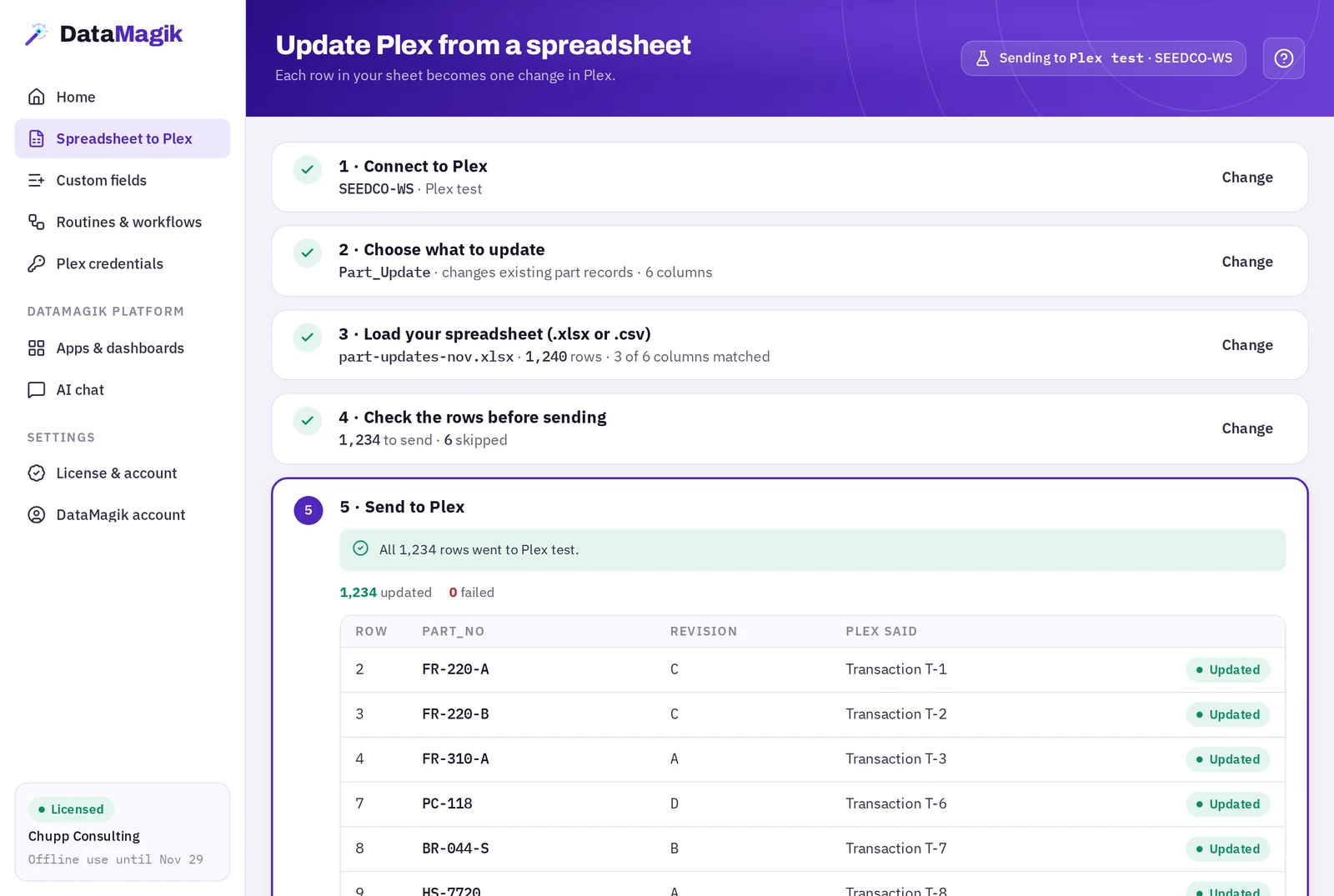
Each row's answer from Plex.
- Save results saves the results to an Excel file.
- Retry the failed rows sends only the rows that failed again. For Plex live, you type their number to confirm.
- Send again starts the send step over with the same sheet.