Workflows and JavaScript
Workflows and JavaScript
Every workflow becomes a JavaScript script when you save it. You can see that script with the Code button, and you can mix your own JavaScript into a workflow in two ways: a Code step, or a call to an existing script with Run Script / Workflow.
The Code step
The Code step (in the Data group) runs JavaScript you write, for anything the other steps cannot do. Try the no-code steps first: Set Fields, Calculate, Text, Date & Time and Summarize cover most needs, and are easier for the next person to read.
What it receives
| Name | What it holds |
|---|---|
items | Every item coming into the step, as a list. Each item's fields are in item.json, not on the item itself. |
$json | The fields of the first item, or of the current item when Run is Once for each item. |
$index | The current item's position, from 0. |
$input | $input.first(), $input.last(), $input.all() and $input.item. |
$('Step name') | An earlier step's output: .json, .first(), .last(), .all(). |
$trigger, $vars, $const | What started the run, the run's variables, and the workflow's constants. |
Run (on the Settings tab) is Once with all items by default: the code runs one time and works through items. Choose Once for each item to run it per item, with $json as that item.
What it returns
- An object becomes one item.
- A list of objects becomes one item per object.
- Returning nothing passes nothing on, so the steps after it are skipped.
The starting code shows the pattern. It copies every item through unchanged:
// items: every input item ({ json })
// $json: the first item's fields, or the current item's in "each" mode
return items.map(item => ({ ...item.json }));
To add a lot code taken from each serial number:
return items.map(item => ({ ...item.json, lot: item.json.serial_no.slice(0, 6) }));Lines your code writes with console.log appear on the step's Output tab after a test run. If the code throws an error, the step fails, and its When this step fails setting decides what happens next.
The Code step runs inside the workflow's script, so it can reach the Script Engine's helpers, such as plex.execute. Use the matching steps instead where you can: the test-run protections (Plex writes held back, emails captured) belong to the steps, not to code you write yourself.
Run Script / Workflow
The Run Script / Workflow step (in the Logic group) calls an existing Script Engine script or another workflow, then carries on with what it returns. Use it to reuse logic you already have, or to share one piece of work between workflows.
- Script or workflow: pick it from the list. Workflows are marked with a Workflow badge.
- Call it: Once for each item, or Once, with every item.
- Input: what the child receives as its starting data (its
context, or a child workflow's$trigger). The default is{{ $json }}, the current item. For every item at once, use{{ $items.map(i => i.json) }}. - Run up to 5 at the same time: faster for many items; each child runs on its own worker.
- Result: put what the child returns on the item, in the field
resultby default (leave Field empty to merge it onto the item), or use a child workflow's items as this step's items.
If the child fails, this step fails with the child's error. On a test run, a child workflow runs as a test too, with the same protections.
When to switch to a plain script
- The workflow is mostly Code steps. At that point a script is simpler to read and change.
- The logic needs many nested decisions or calculations that would take dozens of steps.
- You need a Script Engine feature that has no step.
The two work well together: keep the overall flow as a workflow, so others can follow it, and put a tricky piece in a script that the workflow calls with Run Script / Workflow.
One job, built both ways: the late PO digest
The job: every weekday at 07:00, email the buyers a list of purchase orders that are late. If nothing is late, send nothing.
Both versions use a Plex data source that returns late purchase orders, and a saved email template named Late POs. The template is a Go template that loops over the rows, such as {{range .rows}}…{{end}}, and can show {{.count}}.
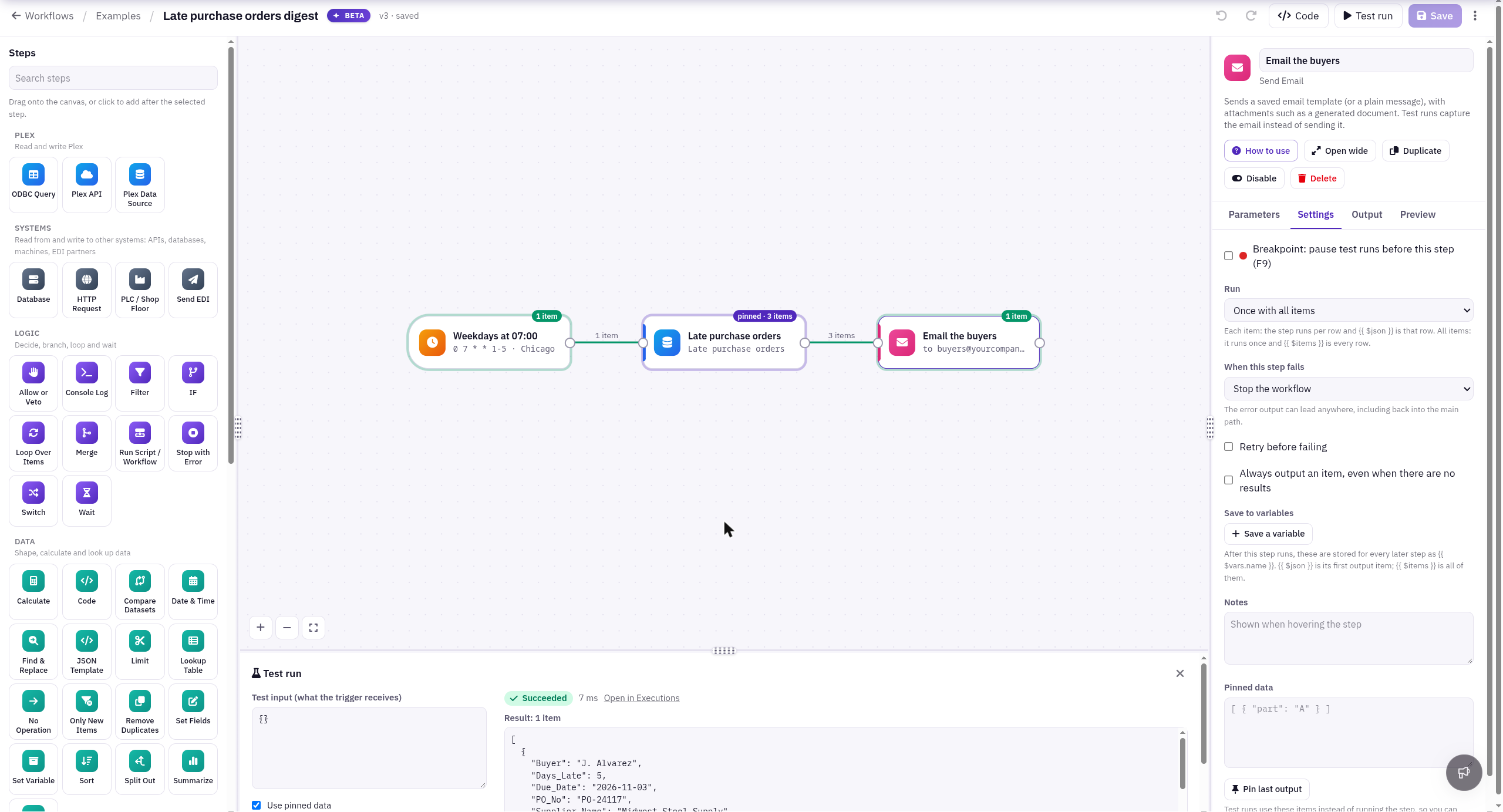
As a workflow (3 steps)
- Schedule: When
0 7 * * 1-5(7:00 every weekday), Time zone your plant's, such as America/Chicago. - Plex Data Source: your Plex credential, your "late purchase orders" data source with its input
Days_Lateset to 1, and Result set to One item per row (no rows: nothing goes on). Each late PO becomes one item. - Send Email: Send A saved email template, Template Late POs, To
buyers@yourcompany.com. On the Settings tab set Run to Once with all items, so all the rows go in one email. Set Template data to:{ "rows": "{{ $items.map(i => i.json) }}", "count": "{{ $items.length }}" }
Why there is no IF step. IF tests each item on its own and sends it to true or false; it does not ask "are there any rows?". You do not need that question here. When nothing is late, the Plex step puts out no items, so Send Email is skipped and no email goes out. The run still succeeds.
If you would rather see the check on the canvas, set the Plex step's Result to One item with rows, outputs and rowCount, add an IF with {{ $json.rowCount }} is greater than 0, and send the email from IF's true output with Template data { "rows": "{{ $json.rows }}", "count": "{{ $json.rowCount }}" }.
As JavaScript
The same job as a Script Engine script, run by a schedule of 0 7 * * 1-5 on the Schedules page:
// Every weekday at 07:00 (schedule 0 7 * * 1-5): email buyers the purchase orders that are late.
function main(context) {
  const result = plex.execute({
    credentialName: "PLEX_BASIC_AUTH",
    dataSourceId: "12345",   // your "late purchase orders" data source
    body: { Days_Late: 1 }
  });
  if (!result.success) {
    return { success: false, script_message: "Plex failed: " + result.error };
  }

  const rows = result.data.rows || [];
  if (rows.length === 0) {
    return { success: true, data: { sent: false, count: 0 } };
  }

  const sent = email.sendWithTemplate("Late POs", { rows, count: rows.length }, { to: ["buyers@yourcompany.com"] });
  if (!sent.success) {
    return { success: false, script_message: "Email failed: " + sent.error };
  }
  return { success: true, data: { sent: true, count: rows.length } };
}
What the workflow gives you for free
- Safe tests. A workflow test run captures the email instead of sending it. Pressing Test Run on the script sends a real email, so point
toat yourself while testing. - Failures handled. The workflow's Plex and Send Email steps fail the run with a clear message if Plex or the email fails. The script has to check both results itself.
- The schedule in one place. The workflow's Schedule trigger is saved with it; the script's schedule is set up separately.