Shipping setup screens
Shipping setup screens
What each page under Shipping setup controls, what each setting does, and when you would change it.
Open Shipping → Shipping settings, then pick a page from the Setup menu. It opens on the setup wizard until setup is complete, and on the Overview after that. New to shipping? Start with Getting started with the setup wizard. Every page below has a full screen behind a wizard step.
Permissions: every setup page needs Shipping - Admin and the Shipping license. The Shipping Manager role holds it.
Most pages show a Built in badge on rows that come with shipping. Change a built-in row and it becomes yours. Reset to built in removes your change and the built-in row applies again.
Overview
What is set up, what is missing, and the next thing to do.
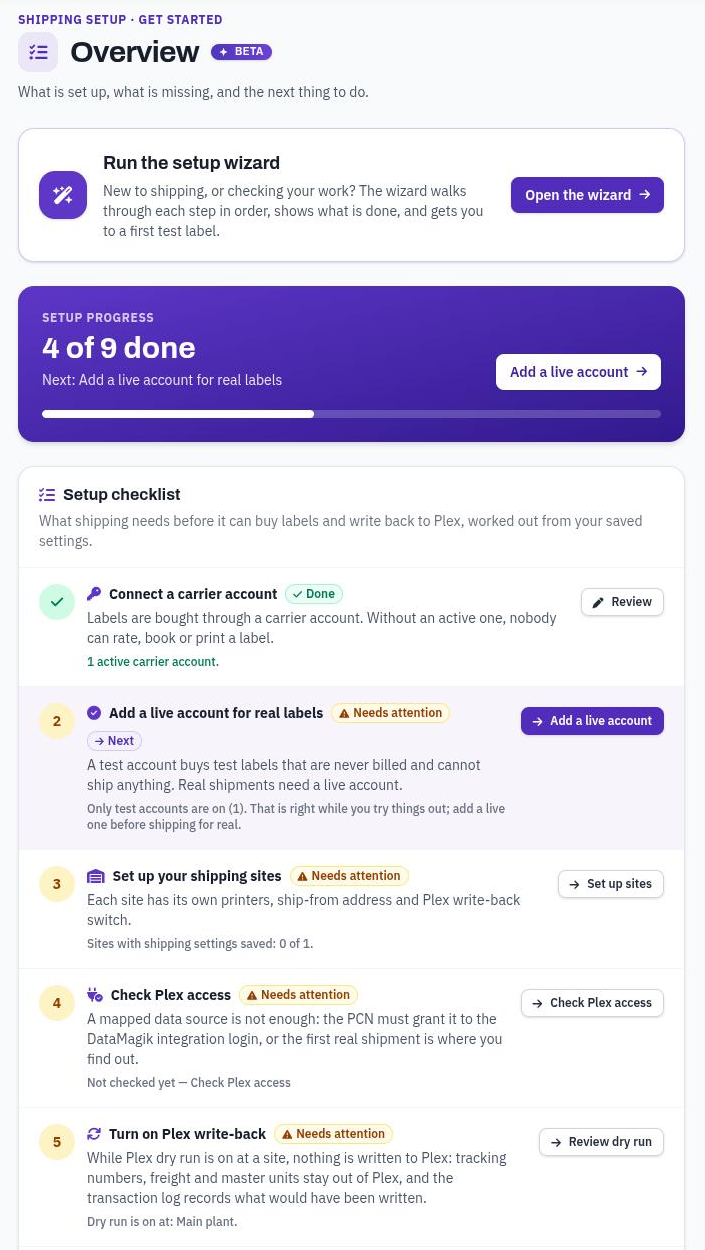
The Overview: the setup checklist and the live check.
- Setup checklist: what shipping needs before it can buy labels and write back to Plex, worked out from your saved settings. Each step opens the page that fixes it.
- Live check: press Run the check to see what a shipment at a site would get right now: its profile, test or live labels, whether Plex is written to, and anything that would stop it.
- Check Plex access: asks Plex whether the site's integration login can use each data source shipping reads. Writes are never called; they are checked on first use. See Plex data sources to grant.
- All setup pages: a tile for every other page.
Plex data check
Finds the Plex records that would stop or slow a label, before anyone is at the workstation. Pick the site (the picker shows only when you have more than one) and press Run the check. Nothing is changed.
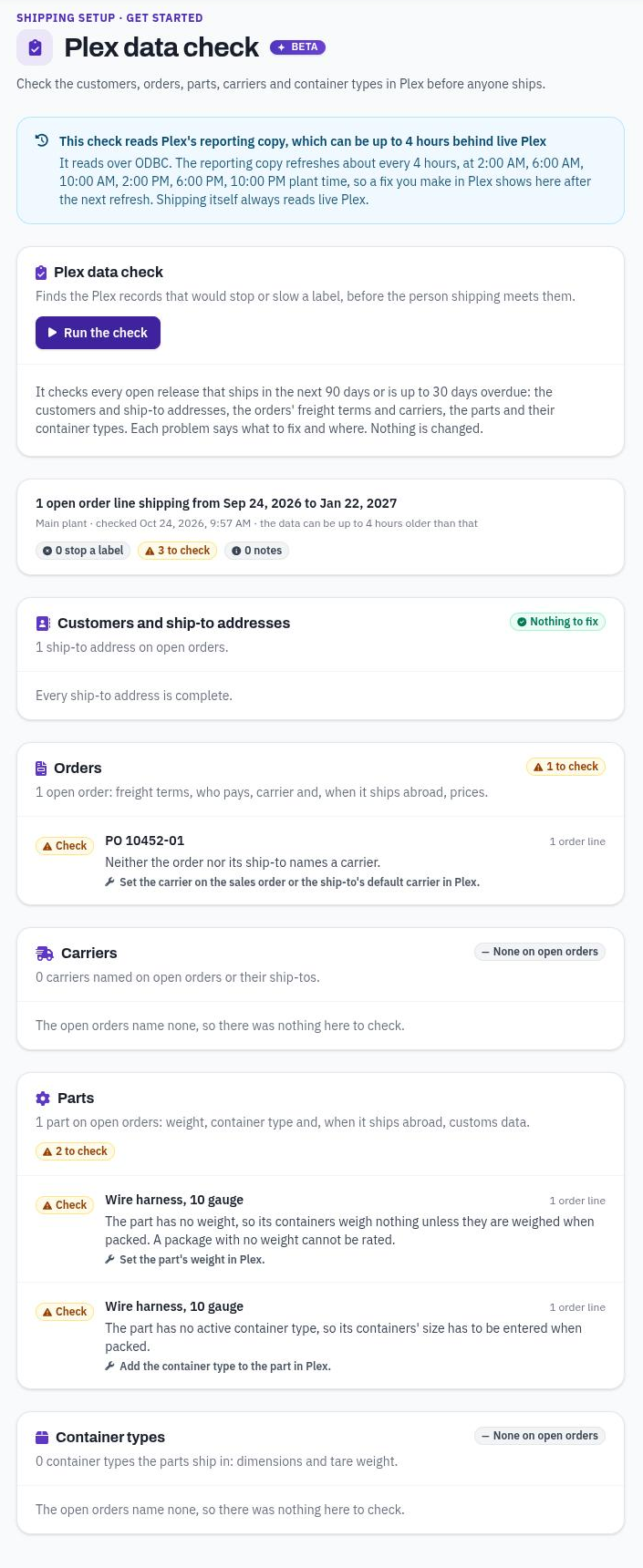
A Plex data check: how fresh the data is, the summary, and what to fix in each section.
It checks every open release that ships in the next 90 days, or is up to 30 days overdue, and what it ships with:
- Customers and ship-to addresses: open releases with no ship-to at all; a missing street, city, state, postal code or country; an inactive address; a first address line that is a note, such as a tax ID, rather than a street; a line longer than 35 characters, which carriers may cut off; and, for an international address, a missing phone number.
- Orders: missing freight terms; freight terms with no policy under Freight terms and billing, or a policy that does not allow a label; terms whose name disagrees with their Prepaid or Collect flag in Plex; customer-pays (collect or third-party) terms whose label would be billed to your own account, because the carrier matches no integrated shipping provider, the ship-to has no customer carrier account for those terms, or its bill-to is unmapped or means you pay; no carrier on the order or its ship-to; and, for international orders, a missing price or a price that is not per piece, per 100 or per 1000.
- Carriers: a carrier that matches no integrated shipping provider in Plex (or Plex has no providers at all); and, as a Note for profiles that do not rate shop, a carrier with no mapping under Carrier services.
- Parts: no weight; no container type; and, for parts that ship abroad, no name besides the part number, an empty HS code attribute when the profile names one, and an empty origin attribute when the profile names one and sets no default country of origin.
- Container types: a length, width or height that neither Plex nor the sizes saved under Packaging have (Stops a label); an inactive type; no tare weight (Note).
Each problem is marked Stops a label, Check or Note, says what to fix and where, and counts the open order lines it affects. A customer, ship-to, carrier, part or container type that is not in the reporting copy yet is marked Check. Severities follow your Customs and compliance rules where one applies.
- The check did not run: if Plex's reporting copy does not answer every read, nothing is checked, and the message names the reads that failed. Run it again.
- Plex cut some of the answer off at its row limit: some reads came back incomplete, so there may be more problems than shown.
- No open orders to check: no open release falls in the window. A section marked Not checked did not come back; run the check again.
How fresh the data is: the check reads Plex's reporting copy over ODBC, which refreshes about every four hours (at 2 AM, 6 AM, 10 AM, 2 PM, 6 PM and 10 PM plant time). It can be up to four hours behind live Plex, so a fix you make in Plex shows in the check after the next refresh. Shipping itself always reads live Plex. The site needs an ODBC credential under Shop Floor → Sites. A company with only one site can use its default ODBC credential instead.
Carrier accounts
A carrier account is the ShipEngine account labels are bought through.
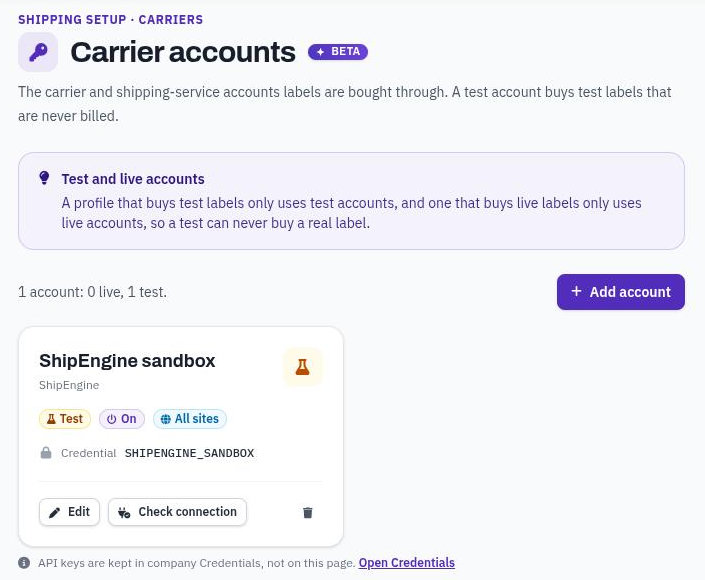
Carrier accounts, with a test account and Check connection.
Press Add account and fill in:
- Account name: what people see when a label is bought through it.
- Credential name: the company credential that holds the API key. The key stays in Credentials and is never shown here.
- Test account: on for a sandbox key, off for a live key. A test account buys test labels, which are never billed.
- Site: All sites, or keep the account to one site.
- Carrier and account number (opens to show more): Only this carrier: leave it on Every connected carrier to use every carrier connected to the ShipEngine account. Choose one carrier to keep the account to it. Account number is needed for freight (LTL) carriers that bill your account; leave it empty for parcel.
- Turned on: an account that is off is kept but not used. No labels are bought through it, and labels it already bought cannot be voided, tracked, put on an end-of-day manifest or picked up until it is on again.
Test and live never mix. A profile that buys test labels only uses test accounts. A profile that buys live labels only uses live accounts. The key must match the switch: a test account with a live key, or a live account with a key starting TEST_, is refused when you save it turned on, and so is an account whose credential cannot be read.
Press Check connection to see which carriers and services answer through this account. It checks this account alone, so another account at the site cannot make a broken key look like it works. It buys nothing. For an account on All sites it checks at the site chosen in the site picker. If it says No carrier answered, check the credential and that at least one carrier is connected to the account in ShipEngine. If it says This account is not used at this site, the site's profile buys the other kind of label.
Delete removes the account. Labels already bought through it stay in the label list, but they can no longer be voided, tracked, put on an end-of-day manifest or picked up. No other account takes them over, so void any labels you still need to void first.
Carrier services
Plex names a service, such as "FedEx Ground". The carrier sells it by a code. A mapping tells shipping which carrier service to buy when a shipper names a Plex carrier and service. Press Add a mapping and set:
- Plex carrier: the carrier on the shipper in Plex, or Any carrier.
- Plex service: the service Plex lists for that carrier, or Any service.
- Carrier service: the service to buy, from the services your connected carriers offer.
- Parcel or LTL freight: how it ships. LTL freight also takes an optional Freight class and SCAC.
- Use this mapping: off keeps the mapping without using it. The next mapping that covers it is used instead.
Names match whole. Upper and lower case and spaces around a name do not matter. Shipping looks for a mapping in this order, and uses the first one that is turned on:
- The exact Plex carrier and service.
- The carrier's Any service mapping.
- Any carrier with the exact service.
- Any carrier with Any service.
A mapping that is switched off is skipped, and the next one in the list is used. Use Any service when one carrier service should cover every Plex service of a carrier that has no mapping of its own. When you remove a mapping, shippers that asked for it use the next mapping that covers them. When no mapping applies at all, shipping matches the service by the carrier's code when it can. Otherwise the person shipping chooses a service, if the profile has Let people pick the service on, and can check Remember this mapping to save it; if that setting is off, the shipment stops. A mapping no connected carrier offers shows Not offered by a connected carrier.
Freight terms and billing
Who pays for freight, by Plex freight term and bill-to code. See Who pays: freight terms and billing.
Profiles
A profile is how shipping behaves. Make a profile for each way you ship, then choose where each one applies on Profile assignment. Each profile card shows its mode, Test labels or Real labels, and how many assignment rules use it. Shipping comes with two built-in profiles: Standard Shipping (DEFAULT) and Rate Shopping (RATESHOP).
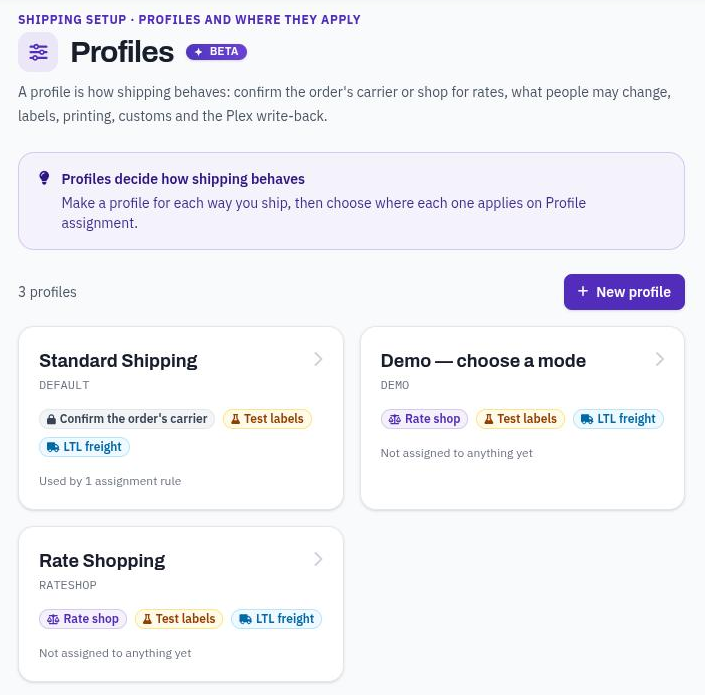
The profiles list: each profile's mode and where it is used.
Name and test labels
- Name: what people see.
- Code: a short ID. It cannot change once the profile is made.
- Test labels: buys labels from test carrier accounts. They are never billed and never move a parcel. Labels from a test profile are not written to Plex. Turn it off when you are ready to ship for real.
How shipments are shipped
- Shipping mode: Confirm the order's carrier ships with the carrier and service Plex has on the order. Rate shop asks every connected carrier for a price and delivery time, and the person shipping picks one.
- Let people switch modes: shows a Confirm / Rate shop switch on the shipping screen and the phone. Off, the profile's mode always applies.
- Let people pick the service: the person shipping may choose a different carrier service for this shipment, even when a mapping exists. Off, in confirm mode a service with no mapping stops the shipment and only the mapped service can be bought. In rate shop mode the person always buys the rate they pick.
- What it ships: Parcel, LTL freight or both.
- Quotes stay valid for: in minutes, 1 to 120; 13 by default. Every label is priced again when it is bought. This setting only decides when a quote on the shipping screen counts as out of date.
- Ship date: The shipper's date in Plex uses the shipper's scheduled ship date, or its ship date. Always today ignores Plex. A date already past always becomes today, because carriers refuse labels dated in the past.
Labels and printing
- Label format: Label printer (ZPL) prints straight to a thermal label printer such as a Zebra. PDF opens to view and print on any printer, and is the default for a new profile. Only ZPL labels print by themselves when bought.
- Let people choose the format: offers ZPL or PDF when the label is bought.
- Label printer: where a ZPL label prints when nobody chooses. When it is empty, the site's Label printer on Sites and buildings is used.
- Let people choose the printer: on, the person shipping may send the label to another printer. Off, labels go to the profile's printer, or the site's. Reprints also go to the profile's printer when one is set.
- Label size: 4 × 6 in thermal or Letter or A4 sheet. The carrier draws the label for this stock.
- Copies of each label: between 1 and 5. How many times a ZPL label prints when it is bought. Reprints print once.
- Weight unit and Dimension unit: the units weights and sizes are given in.
Writing back to Plex
What a booked label writes to Plex. Nothing is written while a site's Plex dry run is on.
- Where tracking numbers go in Plex: every choice puts the first tracking number on the shipper, and the freight too unless the label is billed to the customer or a third party. The choice decides what else gets a tracking number:
- Every container: every container gets one, its master unit's when it is on one, its own when it is loose. This is the default.
- Pallets and loose containers: each master unit gets its own number, and each loose container its own. Containers on a pallet get none. This is how Plex's Integrated Shipping does it.
- Pallets and every container: each master unit gets its own number, and every container gets one too, its master unit's when it is on one, its own when it is loose.
- The shipper only: containers and master units are left alone.
- Master units: whether packing creates and changes master units (pallets) in Plex.
- Never change master units.
- Create new master units: builds pallets Plex does not have yet.
- Create, and change their type: also changes the type of an existing master unit when it differs. This is the default, and the built-in profiles use it.
- Create, retype, and load or unload containers: also loads containers onto existing master units, takes off containers removed from a pallet, and retires master units left empty.
- Carrier on the Plex truck: in rate shop mode only. Write the carrier to the truck writes the carrier the label was bought from to the shipper's truck in Plex. In confirm mode the carrier already came from Plex, so nothing is written. Leave the truck alone never writes it.
- Tracking text after a void: when a label is voided before Plex shows the shipper as shipped, and no other label on the shipper is still active, this text (VOIDED by default) replaces the tracking number on the shipper. This applies only to a label that had been written to Plex. If another label on the shipper is still active, its tracking number and freight are written instead. If Plex already shows the shipper as shipped, the shipper's tracking and freight are left as they are and the person shipping is warned to correct them in Plex.
- Longest tracking text: the length of Plex's tracking field on the shipper. Longer text is cut and the person shipping is told. 30 by default, up to 200; 0 means no limit.
- Note in Plex: written as a container's last action in Plex when shipping takes it off a master unit. Containers changed while packing get "Carrier Integration" and the person's name instead.
Packing checks
- One label per: Pallet (master unit) gives a pallet one label for everything on it. Container gives every container its own label. LTL freight always gets one label per pallet.
- Pallet size check: what happens when the containers on a pallet look bigger than the pallet. Ask the person shipping to confirm stops the shipment until they confirm the size of a pallet built on the shipping screen; a pallet read from Plex only gets a warning. Pallet types with no dimensions are not checked. Warn only shows a warning. Do not check skips it.
- Partial shipments: what happens when an order marked ship-complete in Plex is not fully loaded. Choose Stop the shipment, Warn, Note only or Do not check. A rule for this check on Customs and compliance wins over this setting.
- Freight class when none is set: used on LTL quotes and the bill of lading when a package type has no class.
Carriers and insurance
- Several accounts for one carrier: Plex can hold more than one of the customer's freight accounts for the same ship-to, carrier and freight terms. This decides which one the label is billed to. It does not choose among your own carrier accounts.
- The account nearest the ship-to compares each account's postal code with the shipment's ship-to postal code. Only the digits count, from the start: the account sharing the most leading digits wins. With no ship-to postal code, the first account is used. This is the default.
- The first account always uses the first account Plex returns.
- Residential addresses: carriers charge more to deliver to a home. Always residential or Never residential tells the carrier. Let the carrier decide says nothing.
- Time zone: decides what "today" is for ship dates and end-of-day manifests, for example America/Chicago. Empty uses UTC. A zone shipping does not know is refused when you save.
- Declare a value for insurance: adds each package's value to the label so it is insured. When it is on:
- Insured by: The carrier, Shipsurance, A third party or Nobody.
- Insure packages worth at least: compared with each package's own value. A package worth less is not insured. The other packages in the shipment still are.
- Insure at most: the most any one package is insured for. Empty for no limit.
Customs and international
What goes on customs forms for shipments that cross a border. See International shipments and customs.
Advanced
Performance and Plex reading. The defaults suit almost every site.
- Read order releases: also reads each order's releases from Plex. Turn it on when you need the release number, due date and quantity shipped to date on each line, when shippers have no customer address of their own, or when one shipper carries several orders with different freight terms. It adds Plex calls to every shipper.
- Read containers in one call from: a shipper with at least this many lines reads all its containers at once instead of line by line. 6 by default.
- Pallet size tolerance: how much room a pallet must have. The pallet size check fires unless the pallet is at least this many times the size of the containers on it. 1 means they just fit. 1.2 asks for 20% to spare. 0.8 lets the containers come to 25% more than the pallet.
- Most master units read per shipment: caps Plex calls on a very large shipper. Empty or 0 reads up to 25. Past the cap, the person shipping is warned.
Test delivery address
While a profile buys test labels, they can go to this address instead of the customer's. Fill in Name, Company, Street address, City, State or province, Postal code, Country code, Phone and Email. Leave it empty to use the real ship-to. The person shipping sees a warning when the test address is used. Only a test profile can send to a test address.
Making and removing profiles
- New profile: give it a Name and a Code (capital letters, numbers, dashes and underscores; filled in from the name, and it must not be taken). Start from copies every setting of an existing profile. Then press Create profile.
- Duplicate: opens the same dialog with Start from set to the profile you are viewing. The copy takes that profile's saved settings.
- Delete: removes a profile you made. A profile used by assignment rules cannot be deleted: the page names the rules that use it, and shipping itself refuses too. Point those rules at another profile first. Once a profile is deleted, shipments that used it get the next matching profile.
- Built in: a built-in profile you have not changed shows this badge and cannot be deleted. Once you change it, Delete removes your changes and the built-in settings apply again. This works even when rules use the profile, because the built-in profile stays for them.
Leaving a profile with unsaved changes asks first. Press Save changes or Discard on the save bar.
Profile assignment
Which profile each shipment gets. There are eight kinds of rule, from the most specific at the top:
- One shipper: a single shipment, for a one-off. Wins over every other rule.
- One order: every shipper for a customer order number.
- Customer: every shipment to a customer, by its Plex customer code.
- Carrier on the order: every shipment whose order names this Plex carrier.
- Building: every shipment from a building, the shipper's ship-from in Plex.
- Site: every shipment made at a site.
- Plex PCN: every shipment in a Plex PCN, whichever site it is made at.
- Everything else: the profile every shipment gets when no rule above matches it.
A shipment gets the profile of the first rule that matches it, from the top. The building, customer, carrier and order are read from Plex. Upper and lower case and spaces around a typed value do not matter, so "honda " matches HONDA in Plex. A rule that names a profile that no longer exists is skipped, and the next matching rule applies. Add a Note to say why a rule exists. It is shown when the rule is chosen.
Out of the box, Everything else gets the built-in DEFAULT profile. Until you save an Everything else rule of your own, the page shows No profile for everything else as a reminder to choose it yourself.
Which profile does a shipment get? Type a shipper number and press Check. It shows the profile the shipper gets, its mode, and every rule that was looked at, most specific first: Chosen, No rule, Not known for this shipment, a profile that lost because a rule above wins, or a rule that was skipped because its profile does not exist. With more than one site, choose the site in Plex lists from first, because the site and PCN rules depend on it. Use it after changing rules, before anyone ships.
Saving a One shipper rule checks that the shipper exists in Plex. Everything else can be edited but not removed.
Sites and buildings
One card per site. Each site saves on its own.
- Plex dry run: on, labels are still bought and printed, but tracking numbers, freight, carriers and master units are not written to Plex. The transaction log records each write that would have been made. New sites start in dry run. Turning it off asks you to confirm with Write to Plex. Check the transaction log shows the writes you expect first. See Plex data sources to grant for what shipping writes.
- Label printer: where this site's labels print when the profile names no printer.
- Document printer: where customs forms print when they print automatically. A building's Document printer is used only while this is empty.
- Ship-from contact and address: when it has a postal code, this address is the ship-from on labels for the site, in place of the Plex building's address. A profile with its own ship-from address still uses that one. When the person booking a carrier pickup leaves the phone or email empty, these are used.
Each card also shows the site's profile: the site's own rule, else the rule for its Plex PCN, else the profile for everything else. Change it on Profile assignment.
Buildings sets printing for shipments leaving each Plex building. Press Add building, choose the building or Every other building, and set:
- Document printer: where customs forms for shipments from this building print, at a site that has no Document printer of its own. A site's own Document printer always wins.
- Print customs forms automatically: when a label is bought and the carrier returns customs forms, they print straight away. They go to the site's Document printer, or, at a site without one, to the building's. Each form prints as many times as the profile's Paper copies of the commercial invoice.
A building row applies to that building at every site. A building without its own row uses the Every other building row. Choosing "Do not print" for a label also skips its customs forms. If the forms cannot print, for example because no printer is set, the printer is offline, or two of your printers share the chosen name, the label is still bought and the person shipping is told to print the forms from the label list. If only some copies printed, the message says which ones did not.
Packaging
Plex knows a container as a type such as "BIN-48", and a pallet as a master unit type. Carriers rate by size.
Dimensions Plex does not have: a type with no size in Plex cannot be rated. Usually a packer measures it on the shipping screen. Shipping tries to save the size to Plex, and keeps it here when it cannot. You can also press Add dimensions and enter Length, Width, Height and Empty weight. Dimensions here only fill what Plex leaves empty. Plex's own dimensions always win once it has them. While the site is in Plex dry run, a size measured on the shipping screen is kept here instead of being saved to Plex. Remove a type and the shipping screen asks for its size again.
How package types are described to carriers: press Describe a type and choose Container type or Pallet type, then the Plex type. The type must match Plex's name exactly. Under Tell the carrier, set Packaging (plain words for freight paperwork), Freight class, NMFC item and Hazardous. Leave a box empty when you do not know. Each kind also has an Any line, Any container type and Any pallet type, for every type that has no line of its own. A line for a type replaces the Any line completely: nothing is taken from the Any line.
Customs and compliance
Tighten or relax the built-in shipping checks. See International shipments and customs.
Scan patterns
When someone scans a label to start shipping, its text is checked against these patterns.
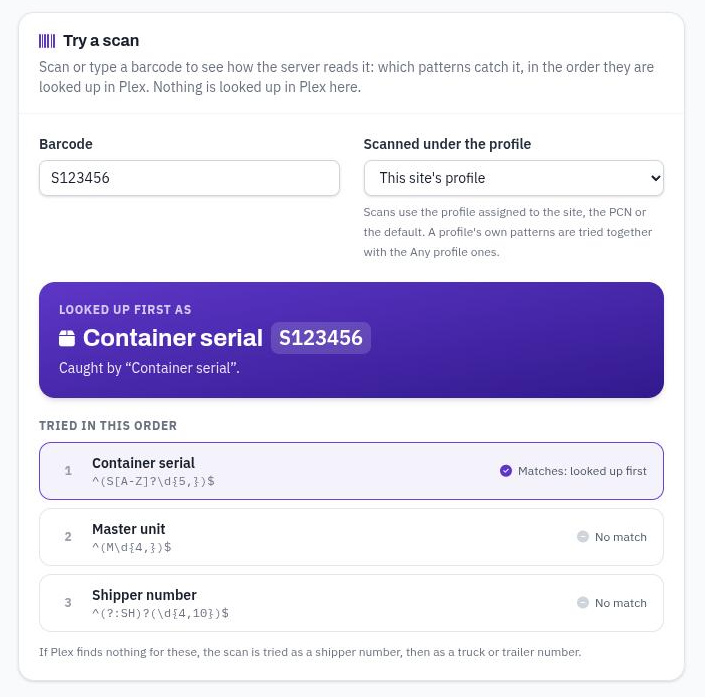
Try a scan: the barcode is read as a container serial, and the patterns in the order they are tried.
Each pattern has:
- Name: what people see when it catches a scan.
- Short code: letters and numbers, filled in from the name. It cannot change later.
- Pattern: a regular expression. The part in the first parentheses is the id that is looked up:
^(S\d{6})$finds S123456. The pattern must have parentheses. Try it on tests it against a sample as you type. Lookahead, lookbehind and backreferences such as\1do not work, and a pattern that uses them is refused when you save. - What it finds: Container serial (shipping opens the shipper it is loaded on), Master unit number, Shipper number (the number on the packing list), or Shipper key (Plex's internal shipper id, for barcodes your own reports print).
- Order: lower numbers are tried first. The built-in patterns use 10, 20 and 30. A new pattern is 100 unless you change it. Patterns with the same order are tried alphabetically by short code.
- Used by: Any profile, or only scans under one profile.
Shipping reads the scan in capital letters. Every pattern that matches is looked up in Plex in order, and the first one Plex finds a shipper for is used. If Plex finds nothing for any of them, the scan is tried as a shipper number (unless a Shipper number pattern already matched it), then as a truck or trailer number.
A scan comes before the shipper is known, so it uses the profile assigned to its site, its Plex PCN or everything else. A pattern kept to any other profile is never tried, and shows Never used by scans. Keep patterns for profiles chosen by customer, carrier, building or order on Any profile.
Try a scan: type a barcode to see how the server reads it. Nothing is looked up in Plex. Scanned under the profile starts on This site's profile. Pick another profile to include its own patterns. The result shows:
- Looked up first as: what the first matching pattern looks up, and which pattern caught it.
- The scan in capitals, when you typed it differently.
- Tried in this order: every pattern, marked Matches: looked up first, Also matches (looked up if Plex finds nothing for the ones above), No match, Not a lookup the server knows, so scans skip it, or a pattern the server cannot read and skips.
- What is tried after the patterns: a shipper number, unless a Shipper number pattern matched, then a truck or trailer number. When no pattern matches, the result says No pattern matches this barcode.
Hooks
Run your own scripts before or after a shipping transaction. See Shipping hooks.
Plex data sources
Each question shipping asks Plex, and the Plex data source that answers it. The built-in wiring suits most sites. Change it only to use a different source, and test a shipment straight after. A wrong number can stop shipping for everyone or write to the wrong place in Plex.
- Where the answer comes from: Plex data source asks Plex live, which is how the built-in questions are answered; the truck read and write start Disabled. Disabled means shipping does not ask this question, though its If it has no answer, ask question is still asked. ODBC query is refused while shipping, because ODBC can be behind Plex.
- Plex data source number, Parameters and Columns: the source, what is sent to it, and how its columns are read. When Parameters is filled in it is the complete list: a parameter not named is not sent. Leave it empty to send shipping's own names as they are.
- If it has no answer, ask: another question to try when this one fails.
- Reset to built-in: puts the shared wiring back to the built-in one. Profile overrides are kept.
Override for one profile changes where one question is answered for one profile only. Every other profile keeps the shared wiring. An override starts as a copy of the shared wiring, and later changes to the shared wiring do not reach it. Use the profile picker (All profiles, or for example As Standard Shipping sees it) to see the wiring as one profile sees it. In that view, Override starts an override and Remove this override takes one away. See Plex data sources to grant.
Import
Moving from the Carrier Integration app? Choose the Carrier Integration app and press Import. It copies the app's settings and label history into native shipping. The app itself is not changed.
- Settings are copied row for row: profiles, profile assignment rules, carrier services, freight terms, bill-to codes, packaging, measured package sizes, customs and compliance rules, scan patterns, building printers and Plex data sources. A row you already saved here with the same name is replaced by the app's. Rows the app does not have are kept.
- Label history: every label the app bought, so it can be reprinted, voided and manifested here. A label already copied is never copied twice, so you can run the import again.
- Not copied: carrier accounts and their credentials, hooks and site settings. Set those up on their own pages.
There is no preview. The page shows how many rows of each section are already saved here and may be replaced. Before anything is saved, each profile's time zone and each scan pattern is checked. If one is wrong, nothing is imported and the page says which to fix in the app. The settings are saved all together or not at all. If the app's label table cannot be read, the page says so: the settings were imported, but no labels were. The result lists the rows copied per section and anything skipped. Afterwards, press Check the profiles.
Transaction log
Every shipping transaction that changed something or ran a hook: who did it and from where, how it ended, what shipping found, what was written to Plex, and which hooks ran. Entries come from the web workstation, the Plex panel, or the phone. Rate quotes and tracking look-ups appear only when a hook ran.
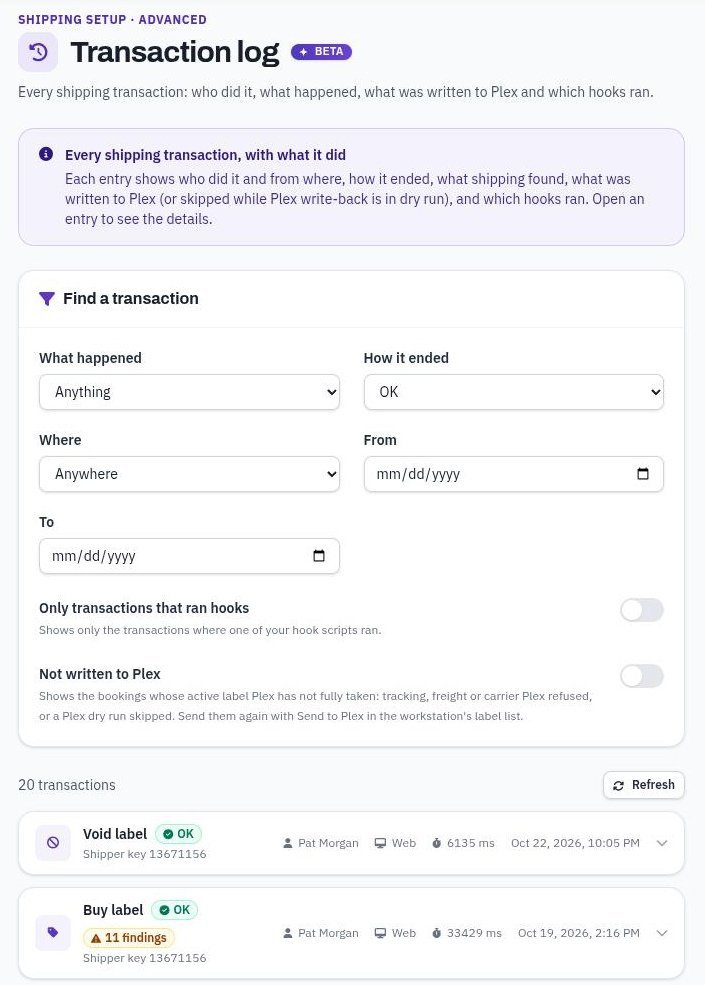
The transaction log with its filters.
Use Find a transaction to filter:
- What happened: for example Buy label, Void label, Retry Plex write-back, Release unknown purchase, Reprint or Schedule pickup.
- How it ended: OK, Failed or Stopped by a hook.
- Where: Web, Inside Plex or Phone.
- From and To: the dates.
- Only transactions that ran hooks: transactions where one of your hook scripts ran.
- Not written to Plex: label purchases whose label is still active and Plex has not fully taken: tracking, freight or carrier Plex refused, or a live label a Plex dry run skipped. Send them again with Send to Plex in the workstation's label list.
Each row shows what happened, how it ended, the number of warnings and hooks when there are any, the shipper, the user, where it came from, how long it took and when. Open a row to see What shipping found, Plex write-back (each write Written, Failed or Skipped: dry run), Hooks (each hook OK, Stopped by a hook, Failed or Queued) and The request. Press Load more for older entries, with the same filters.