Getting started with the setup wizard
Getting started with the setup wizard
Go from nothing to a first test label, then live, one step at a time. Test labels and Plex dry run stay on until the last step.
Open Shipping → Shipping settings in the menu (or Settings on the Shipping page). Until setup is complete, this opens the wizard at /shipping/setup/wizard. After that it opens the Overview, and the wizard stays under Get started → Setup wizard in the setup menu.
Permissions: every setup page needs Shipping - Admin and the Shipping license. The Shipping Manager role holds it.
Before you start
- A Shop Floor site for the plant you ship from. A site holds the Plex PCN and the Plex credential shipping reads Plex with. Add one under Shop Floor setup (
/shop-floor/settings/sites). See Getting started with Shop Floor. - A ShipEngine account with FedEx, UPS or both connected to it, and its API keys. Start with the sandbox key, which begins
TEST_. - A company credential holding the API key. Add it under Credentials (
/datamagik/script-engine/credentials). Shipping never asks you to type the key itself. - Plex data sources granted to the DataMagik integration user for your PCN. The wizard checks them for you. See Plex data sources to grant.
How the wizard works
The header says how many required steps are done. Each step reads your live setup, so its status is always current. A step shows Done, Needs attention, Not started, Skipped or Optional.
- Save and continue saves the step and moves on. A step that saves nothing shows Continue.
- Back goes to the previous step.
- Skip moves on without changing anything. You can come back from the step list.
- Open the full screen opens the setup page behind the step, with every option.
When a save fails, nothing is saved and the step shows the reason. It also says who has to fix it: ShipEngine refused this: check the API key, Plex refused this: a data source grant is missing, or This needs a change in your DataMagik setup.
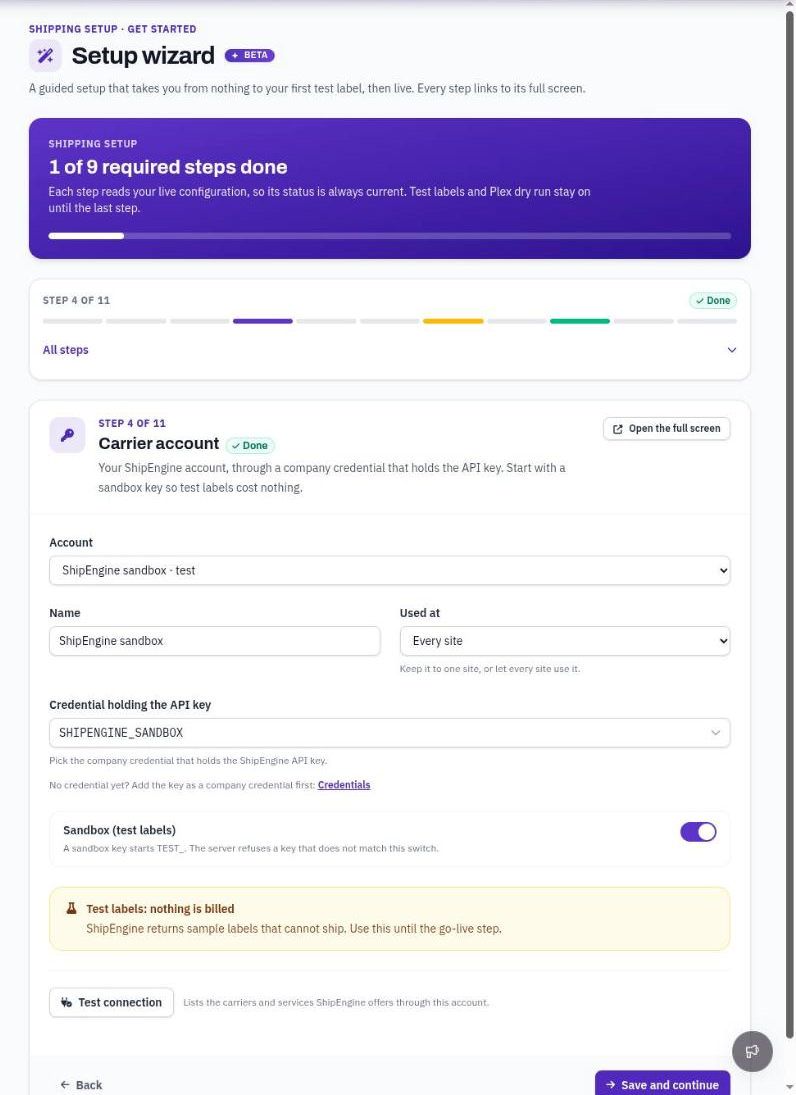
The setup wizard, with the step list and the carrier account step.
The steps
1. What you ship
Turn on the cards that apply: Parcel, LTL freight and International. This is saved to the default profile. International adds the customs step and the international Plex checks.
2. Site and Plex connection
Choose the site you ship from in Ship from. Each choice shows its PCN and credential. The rest of the wizard reads Plex at this site.
The Plex dry run panel shows whether the site writes to Plex. Keep dry run on through setup and the test shipment. Saving this step saves the site as a shipping site with dry run on. If dry run is off before you have gone live, saving this step turns it back on.
3. Plex access
The wizard calls each Plex data source shipping reads, once, at this site, and lists any that Plex has not granted. The check runs when the step opens. Press Check Plex access to run it again. Writes are never called.
If a required group is not fully granted, ask your Plex administrator for the data sources listed. You can carry on meanwhile. The step stays Needs attention until they are granted. See Plex data sources to grant for the full list.
4. Carrier account
This is your ShipEngine account. Fill in:
- Name, for example ShipEngine.
- Used at: Every site or one site.
- Credential holding the API key: the company credential with the key in it.
- Sandbox (test labels): leave it on. A sandbox key starts
TEST_.
The key must match the switch. A sandbox account with a live key, or a live account with a TEST_ key, is refused when you save. This stops a test from billing you, and a live label from being a sample.
Press Test connection. It lists the carriers and services ShipEngine offers through the account. If it says No carrier answered, connect FedEx or UPS to the account in ShipEngine, then test again.
5. Carrier services
Plex names a service, such as "FedEx Ground". The carrier books it by a code. Map each Plex service once. Services not yet mapped are listed first, marked Not mapped. Pick the carrier service and press Map. The carrier services come from the account you tested in step 4.
6. Freight terms and billing
The table lists each Plex freight term, Who pays by Plex's flags, and its Policy. Press Add a policy row on any term with No policy.
Then choose what happens to A collect order billed to your own account: Block it (recommended) or Warn and let it ship. See Who pays: freight terms and billing.
7. Default shipping profile
The default profile is used when nothing more specific applies. Set:
- How the service is chosen: Confirm the order's carrier ships with the carrier and service Plex already names. Rate shop shows rates from every carrier and lets the shipper pick.
- Label format: ZPL for thermal label printers, which needs a printer, or PDF, which opens in the browser.
- Label printer: a printer your print agent reports. See Printers.
- Time zone: decides what "today" is, for the ship date and the end-of-day manifest. Without one, days run on UTC.
- People may pick the service: lets the shipper change the carrier service before buying.
- Test labels (sandbox): leave it on until the go-live step.
The step needs attention while the format is ZPL and no printer is set.
8. Packaging (optional)
A carrier rates by size, so a container type without dimensions cannot be rated. The step lists the types Plex has no dimensions for. Press Add dimensions, measure the outside of an empty container, and press Save dimensions. Dimensions saved here only fill what Plex leaves empty.
9. International
This step appears when you turned on International in step 1. Set the Terms of trade, the Country of origin when none is set, the Currency, the Contents, If it cannot be delivered, and the Plex part attribute for the HS code. See International shipments and customs.
10. Scanning (optional)
Type a container serial, master unit or shipper number into Try a scan to see what it is read as. The built-in patterns suit most labels. Add your own under Scan patterns if yours look different. Nothing is saved on this step.
11. Test shipment
Book a label on a real open shipper. With a sandbox account and Plex dry run on, the step says Safe to try: nothing is billed or written. Press Open in the workstation next to a shipper, buy the label in the new tab, then come back and press Check for the test label. The step is done once a test label is in the label list.
12. Go live
Three switches make shipping real. Each one is confirmed on its own and says exactly what it changes. Do them together, when people are ready to ship for real.
- Carrier account on a live key. In Copy settings from, pick your test account. In Credential with the live key, pick the credential holding your live ShipEngine key, which does not start
TEST_. Press Add a live account. This adds a second, live account beside the test one, named after it with "(live)". Your test account is not changed and stays active. - The profile buys live labels. Press Turn test labels off. From then on, every label bought with the default profile is real and billed.
- The site writes to Plex. Press Turn Plex dry run off. From then on, every label writes its tracking, freight and master units to the Plex shipper.
When all three are live, the step says Shipping is live. Shipping setup then open on the Overview.
Test first: if no test label has been bought yet, the step warns that the first real label would also be the first try. Finish step 11 before you go live.
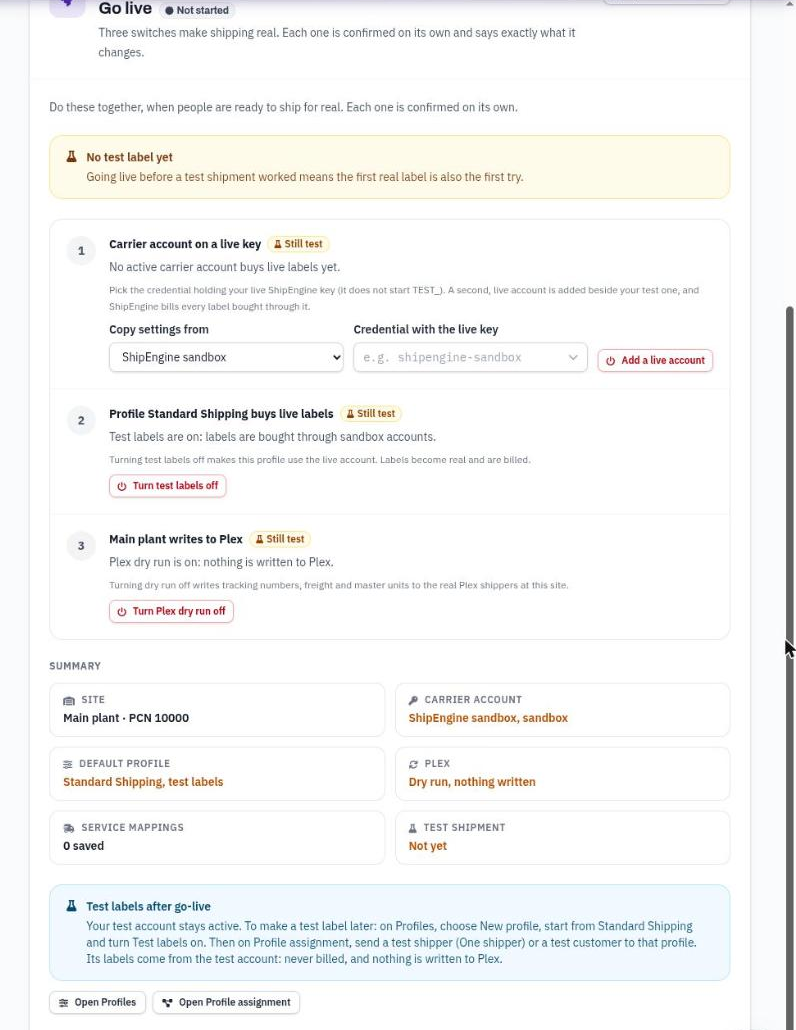
The Go live step, with each switch confirmed on its own.
Test labels after go-live
Your test account stays active after go-live. To make a test label later:
- On Profiles, choose New profile, start from your default profile and turn Test labels on.
- On Profile assignment, send a test shipper (One shipper) or a test customer to that profile.
Labels for that shipper or customer come from the test account. They are never billed, and nothing is written to Plex.
The setup pages
Every wizard step has a full screen behind it. Use these pages to change anything later. They are grouped in the Setup menu:
- Get started: Setup wizard, and Overview (
/shipping/setup/overview), which shows what is set up, what is missing and the next thing to do. It also holds Check Plex access. - Carriers: Carrier accounts, Carrier services, and Freight terms and billing.
- Profiles and where they apply: Profiles, Profile assignment (which profile each shipment gets, by shipper, customer, carrier, building or site), and Sites and buildings (each site's Plex dry run switch, printers and ship-from address).
- Packing and paperwork: Packaging, Customs and compliance (tighten or relax the built-in checks), and Scan patterns.
- Automation: Hooks, which run your own scripts before or after a shipping transaction.
- Advanced: Plex data sources, Import (from the Carrier Integration app), and Transaction log (every shipping transaction, what was written to Plex and which hooks ran).