Using the Document Designer
Using the Document Designer
Design the PDF and document templates DataMagik generates from your data.
Open Documents → Document Designer. This is where you create and manage templates — the layouts DataMagik fills with data to produce invoices, reports, labels, and other documents.
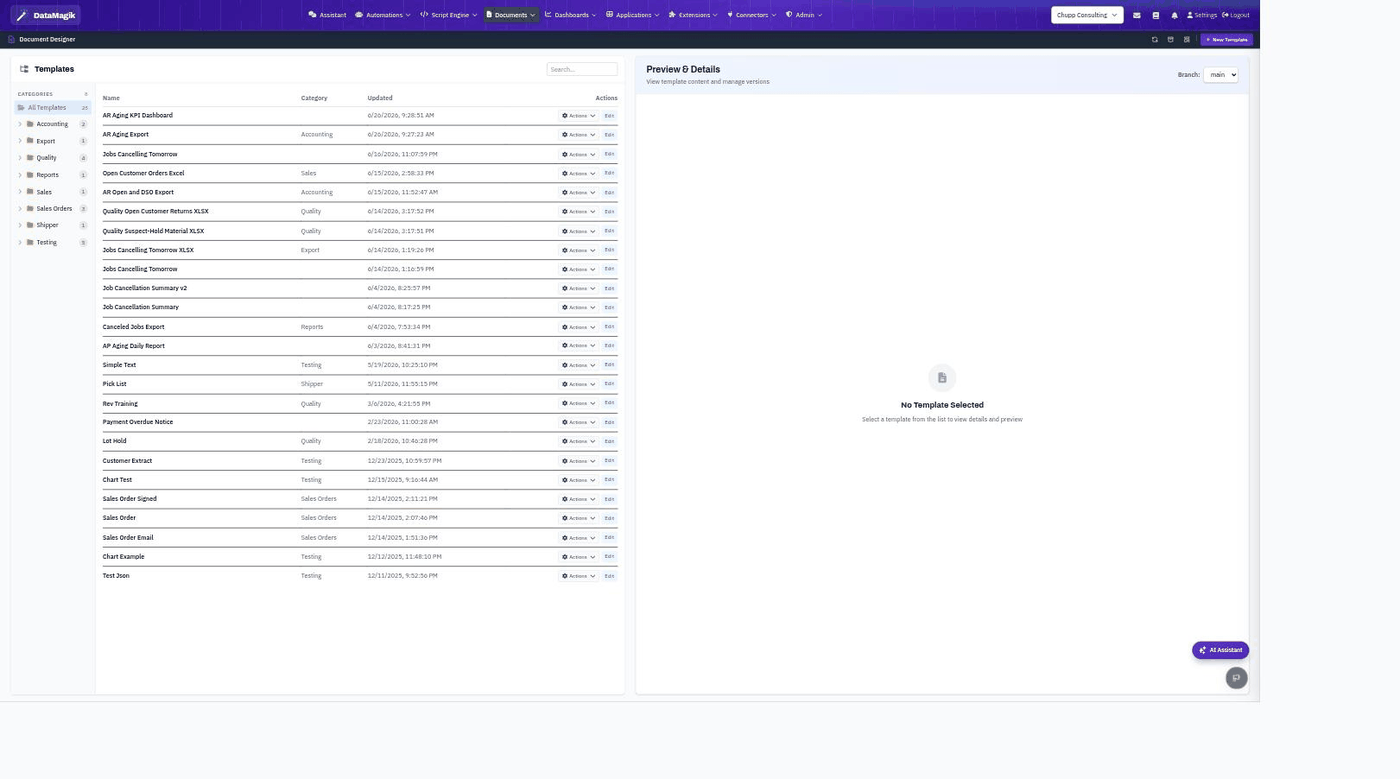
The template list
- Categories (left) — organize templates into groups such as Accounting, Quality, or Reports. Click a category to filter, or All Templates to see everything.
- Name / Category / Updated — each template and when it last changed.
- Actions / Edit — per-template actions; Edit opens the template editor.
- Search — find a template by name.
- Branch — templates use a dev/main branch workflow so you can draft changes before they go live; switch with the branch selector.
- New Template — start a template from scratch.
- Preview & Details (right) — select a template to preview its content and manage versions.
How templates work
A template is HTML and CSS with placeholders that DataMagik replaces with your data at generation time. Placeholders use dotted field syntax such as {{.customerName}}. Templates can include headers and footers, barcodes, and charts.
The guides in this section cover the full template language:
- Go Template Syntax
- String Functions, Date & Time Functions, Control Flow
- Barcode Generation, Chart Generation
Generating documents
Once a template is published, generate documents from it through automations, the Script Engine (documents.generate), or the API. Generation is asynchronous: DataMagik queues the request and produces the file in the background, then returns a link or the file itself.
Permissions: Designing and editing templates requires the Builder permission.