Workflow Triggers
Triggers: what starts a workflow
Every workflow begins with one trigger step. The trigger decides when the workflow runs and what data it starts with. Add it from the Triggers group of the palette. Once a workflow has a trigger, the palette hides the others: a workflow has one trigger.
Two places hold the starting data:
- The trigger step's output item. The next step reads it as
{{ $json.field }}. $trigger, which any step can read. It holds the data the run was started with.
For most triggers the two are the same. File Arrives and Email Arrives tidy the delivery into a clean item, so read their fields from the trigger step's output.
Saving the workflow sets up what starts it: the schedule, the file watch, the email address, the hook or the tag watch. Removing the trigger and saving takes it away again. If something could not be set up, the workflow still saves and the trigger step shows a warning saying why.
Triggers that react to outside events have a Sample (for building) field. Test runs use the sample in place of a real event, so you can build and test without waiting for one.
| Trigger | Starts when | Starting data |
|---|---|---|
| Manual / API | Someone presses Run, or a system calls the API | The request body |
| Schedule | The clock reaches the time you set | One item to start the run |
| File Arrives | A matching file lands on a file endpoint | The file, its name, path, size and endpoint |
| Email Arrives | An email reaches one of your inbound addresses | The message and its attachments |
| Platform Hook | Someone makes a Mobile or shop floor transaction | The transaction |
| Tag Crosses a Limit | A machine reading goes outside a band | The reading |
| When a Workflow Fails | Another workflow or script fails | What failed and why |
Manual / API
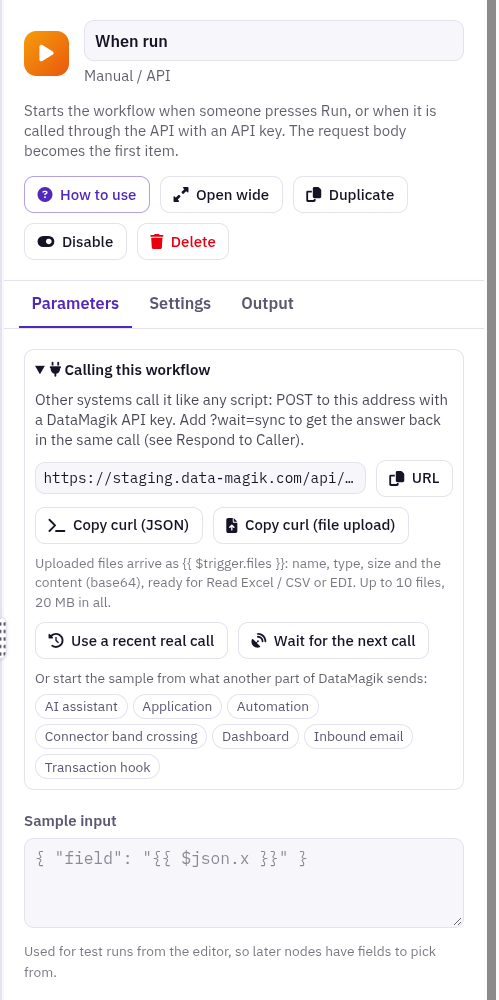
Runs when someone presses Run, or when another system calls the workflow through the API with an API key. The request body becomes the first item.
- Sample input: JSON shaped like what callers will send. Test runs from the editor use it, and later steps get fields to pick from. Real calls use what was actually sent.
- $trigger: the request body. A caller sending
{"part_no": "1001-A", "qty": 40}gives you{{ $trigger.part_no }}, which is also{{ $json.part_no }}in the next step.
Calling a workflow by API
A workflow is called exactly like a script: through the Script Engine execute endpoint, with an API key. The Manual / API trigger's Parameters tab has buttons to copy a ready-made example:
- Copy curl (JSON) sends a JSON body.
- Copy curl (file upload) sends a file.
curl -X POST 'https://<your DataMagik address>/api/script-engine/scripts/<workflow id>/execute?wait=sync' \
  -H 'X-API-Key: <your API key>' \
  -H 'Content-Type: application/json' \
  -d '{"order": "SO-1001"}'
With ?wait=sync the caller waits for the run to finish and gets its answer. To choose that answer (JSON, text or a file such as a PDF the workflow made, plus the status code), end the workflow with a Respond to Caller step. Without Respond to Caller, the caller gets the items of the last step that ran.
To get a realistic sample, use Use a recent real call to pick a call that already arrived, or Wait for the next call. The call you pick becomes the sample input.
Schedule
Runs the workflow by the clock: every morning, every 15 minutes, or at each shift change.
- When: five parts: minute, hour, day of month, month, day of week. Pick from Pick a common schedule…, or type your own.
0 6 * * 1-5is 6:00 every weekday;*/15 * * * *is every 15 minutes. - Time zone: your plant's zone, such as America/Chicago.
- Starting data: one item, so the next step (often a Plex step) runs once. You rarely need
$triggeron a schedule.
Saving creates a schedule named Workflow schedule, which you can see on the Script Engine's Schedules page. To pause it without changing the workflow, switch it off there: it stays off when the workflow is saved again, and later saves only update its time. Removing the trigger removes only that schedule; schedules you added yourself are left alone.
For a schedule that polls Plex or a folder for new records, add Only New Items so each record is handled once.
File Arrives
Runs when a matching file lands on a file endpoint: a polled FTP or SFTP folder, a share, or the hosted gateway partners upload to.
- File endpoint, Files matching (a path starting with
/, such as/inbound/*.csv;*matches within a folder,**across folders), Afterwards (leave the file, move it to the Archive folder, or delete it). - Starting data: one item for the file: the file itself in
{{ $json.file }}, plusname,path,sizeandendpoint.
Hand {{ $json.file }} to Read Excel / CSV, Read XML, Read EDI or Read PDF Text.
Email Arrives
Runs when an email reaches one of your DataMagik inbound addresses, such as purchase orders a customer emails in.
- Address: create addresses and their safe senders under Script Engine › Email Intakes, then choose one here. Saving points the address at this workflow. If the address used to start something else, the save tells you.
- Starting data: one item per email:
from,fromName,to,subject,textBody,htmlBody, andattachmentsas files. The first attachment is also{{ $json.file }}. Attachments too large to carry are listed by name in{{ $json.attachmentsTooLarge }}.
To make the sample realistic, send a real email to the address, open the run in Executions, and copy its shape into the sample.
Platform Hook
Runs when someone makes a transaction on DataMagik Mobile or the shop floor, such as moving, scrapping or holding a container.
- When: the transaction, as a Before or After hook. A Before hook runs before the transaction goes to Plex and can check it, change it, or stop it. An After hook runs once Plex has accepted it, for follow-on work such as emails or labels.
- If this workflow fails or runs out of time (Before hooks): stop the transaction (the person sees why), or let it go ahead.
- Time limit (seconds): up to 30. The person waits while a Before hook runs, so keep it short.
- Starting data: the transaction:
{{ $json.request }}(what a Before hook may change),{{ $json.details }}(facts such as part and quantity), the user and the event.
End a Before hook with an Allow or Veto step. Setting up a hook needs the Mobile admin settings permission (with a Mobile licence) or the Shop Floor manage permission. Without it, the workflow saves but the hook is not changed, and the trigger shows a warning.
Tag Crosses a Limit
Runs within moments when a machine reading goes outside a band, such as a press running too hot. The connector watches the tag at the plant.
- Tag (bound under Shop Floor › Tags), Low limit, High limit (one or both; the low limit must be below the high), and Settle margin.
- Settle margin is in the tag's own units. With a high limit of 200 and a margin of 2, the value must come back below 198 before it can fire again.
- Starting data: the reading:
value,low,high,margin,trigger_name,workcenter_id,roleandcrossed_at.
Setting up a tag trigger needs the Shop Floor manage permission and Shop Floor OT.
When a Workflow Fails
Runs when another workflow or script fails, so one alerting workflow can tell the right people about all of them.
- Watch: Every workflow and script; Every workflow (not plain scripts); or Only the ones I name. With the last, list the names in Names, separated by commas.
- Starting data:
{{ $json.failed }}holdsname,kind,error,failed_step,triggered_by,completed_at,execution_idandlink(a link to the run in Executions).
Test runs and this workflow's own failures never start it. Workflows stopped on purpose with Stop with Error count as failures.
Title:   {{ $json.failed.name }} failed
Message: {{ $json.failed.error }}