Workflow Expressions
Expressions: using data from the run
Most step fields accept an expression: a small formula between {{ and }} that is filled in when the step runs. Use expressions to pass a part number from one step to the next, build an email subject, or work out a date.
{{ $json.part_no }}
Order {{ $json.order_no }} shipped on {{ $fn.formatDate($json.ship_date, 'MM/DD/YYYY') }}
{{ $json.qty * 2 }}
A field can hold plain text, one expression, or text with several expressions mixed in.
- When the whole field is one expression, the value keeps its type.
{{ $json.qty }}stays a number, and{{ $json.lines }}stays a list. - When text and expressions are mixed, the result is text. A list or object written into text appears as JSON.
- A field that reads a missing value gets nothing (empty) rather than failing the step.
Items: how data moves through a workflow
Steps pass items to each other. An item is one record: one Plex row, one order line, one file, one email. A Plex step that returns 40 rows puts out 40 items. Each item's fields sit under json, which is why you write $json.part_no.
Each step runs in one of two ways. Many steps let you choose under Settings › Run:
| Run | What happens | Use it for |
|---|---|---|
| Once for each item | The step runs one time per item. {{ $json }} is the item being worked on. | Looking up each part in Plex, sending one email per order. |
| Once with all items | The step runs one time. {{ $items }} is every item coming in, and {{ $json }} is the first one. | One summary email, one spreadsheet, one count. |
Some steps always run one way. Sort, Summarize, Limit and Merge always work on all items together. Filter, IF and Set Fields always work item by item.
A step only runs when at least one item reaches it. If an earlier step puts out no items (for example, a Plex query that finds nothing), the steps after it are skipped. Branches from an IF or Switch can join again at any later step.
The values you can use
| Write | What it gives you | Example |
|---|---|---|
$json | A field of the item this step is working on. Use ["..."] for a name with spaces. | {{ $json["Part No"] }} |
$item | Another name for $json. | {{ $item.qty }} |
$('Step name') | An earlier step, by its name. .json is its item in the same position as the current item (or its last item, if it put out fewer). .first(), .last() and .all() give its first item, last item, or every item. | {{ $('Get orders').json.order_no }}{{ $('Get orders').all().length }} |
$node["Step name"] | The same as $('Step name'), written another way. | {{ $node["Get orders"].json.order_no }} |
$trigger | What started the run: the API request body, the failed run, the transaction. See Triggers for what each trigger puts here. | {{ $trigger.part_no }} |
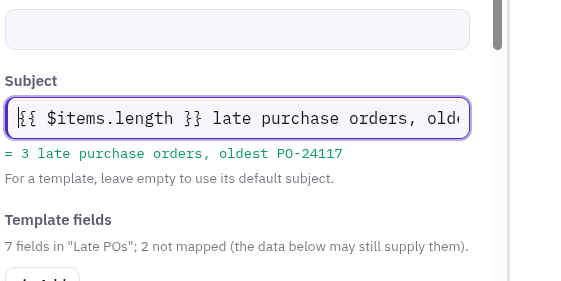
$items | Every item coming into this step, as a list. Each entry has .json. | {{ $items.length }} |
$index | The position of the item being worked on, starting at 0. | {{ $index + 1 }} |
$input | The items coming in: $input.first(), $input.last(), $input.all(), and $input.item for the current one. | {{ $input.first().json.po_no }} |
$const | A constant set once in Workflow settings. | {{ $const.plant_email }} |
$vars | A variable saved earlier in this run, by a Set Variable step or a step's Save to variables setting. | {{ $vars.batch_id }} |
$now | The date and time now, in UTC. | {{ $now }} |
$today | Today's date in UTC, as YYYY-MM-DD. | {{ $today }} |
$fn | Helper functions for dates, numbers and text (below). | {{ $fn.round($json.weight, 1) }} |
Inside a JSON Template step's $each block you can also use $parent: the item outside the block.
Constants and variables
- Constants (
$const) never change during a run. Set them in Workflow settings, so a company code or an email address lives in one place. Do not put passwords in constants; use credentials. - Variables (
$vars) are set while the run goes, such as a total or a batch number. Any later step can read them.
The $fn helpers
| Helper | What it does |
|---|---|
$fn.formatDate(date, format, timeZone) | Writes a date your way. Tokens: YYYY MM DD, MMM or MMMM (Jan, January), ddd or dddd (Mon, Monday), HH or hh (24 or 12 hour), mm, ss, A (AM/PM). Text in [brackets] stays as written. The time zone is optional, for example 'America/Chicago'. |
$fn.addTime(date, amount, unit) | Moves a date by minutes, hours, days, weeks, months or years. A negative amount goes back. |
$fn.diff(from, to, unit) | The time between two dates in the unit you name. Negative if the second is earlier. |
$fn.startOf(date, unit, timeZone) / $fn.endOf(...) | The start or end of the day, week, month or year a date falls in. |
$fn.toDate(value) | Reads a date in most formats and gives it back in ISO format. |
$fn.round(number, places) | Rounds to a number of decimal places. |
$fn.formatNumber(number, places) | Adds thousands separators and fixed decimals, for emails and documents. |
$fn.toTitle(text) | Title Case. |
$fn.coalesce(a, b, ...) | The first value that is not empty. |
$fn.isEmpty(value) | true for nothing, empty text, an empty list or an empty object. |
$fn.regexTest, regexMatch, regexMatchAll, regexReplace, regexSplit | Pattern tools: test for a match, get the first match (or its first group), get every match, replace, or split. |
You can also use common text and list methods, such as .toUpperCase(), .trim(), .slice(), .replaceAll(), .split(), .includes(), .padStart(), .join(), .map(), .filter() and .length, plus Math.round, Math.max, Number(), String() and JSON.stringify().
{{ $json.qty > 0 ? 'In stock' : 'Out of stock' }}
{{ $items.map(i => i.json.part_no).join(', ') }}
{{ $fn.formatDate($now, 'MMM D, YYYY h:mm A', 'America/Chicago') }}
{{ String($json.lot).padStart(6, '0') }}
Expressions are formulas, not programs. They cannot call Plex or any other system, and only the values and helpers on this page are allowed. For anything bigger, use a Code step.
Live preview
As you type an expression, its value appears under the field. The preview is worked out from the data of your last test run, using the same rules the real run uses. If the expression has a mistake, the preview shows the error instead.
Before the first test run there is no data, so the preview asks you to run the workflow first. Use Run up to here to get data for the step you are working on.
Picking fields instead of typing
- Input data: after a test run, a step's Parameters tab lists the fields of the earlier steps. Click a field to put its expression in the field you were last typing in.
- Open wide: in the wide step view, drag a field from the Input or Output panel onto a form field. See The workflow editor.
The Functions helper
Every step's How to use panel ends with Values and functions for {{ }} fields: a searchable list of every value and helper above, each with an example and its result. Click one to put it in the field you were last typing in.