Workflows
What a workflow is
A workflow is an automation you build by connecting steps on a canvas instead of writing code. Each step does one job: read from Plex, filter rows, make a PDF, send an email. Data flows from step to step along the connections.
Behind the scenes, DataMagik turns every workflow into an ordinary Script Engine script. That is why everything that works with scripts works with workflows too:
- Schedules run it by the clock.
- API keys let other systems call it, through the same endpoint as a script.
- Executions records every run, with failures counted as failures.
- Integrations can include it alongside your scripts.
- Dashboards, apps, automations, Excel and AI assistants can use it.
Find workflows under Script Engine › Workflows.
Who it is for
Workflows are for the people in your plant who know the process and the data, such as a materials planner, a quality engineer or an IT generalist, but who do not write JavaScript. If you can describe the job as "every morning, get these rows from Plex, keep the ones that are late, and email them to the buyers", you can build it as a workflow.
Building and changing workflows needs the DataMagik - Builder permission. People with DataMagik - Viewer can open workflows read-only.
Workflow or JavaScript?
| Use a workflow when… | Write a script when… |
|---|---|
| The job is a chain of steps the palette already has: Plex, files, Excel, documents, labels, email, Teams, approvals, AI. | The logic is mostly calculation or many nested decisions that would need dozens of steps. |
| Other people need to see and change how it works. | You need a Script Engine feature that has no step. |
| You want to test step by step, with each step's data on screen. | You are comfortable in JavaScript and already have a working script. |
You do not have to choose all or nothing. A workflow can run a few lines of JavaScript in a Code step, or call an existing script with Run Script / Workflow. See Workflows and JavaScript, which also shows the same job built both ways.
The Workflows list
Script Engine › Workflows shows your workflows as cards, grouped in folders. Each card shows the workflow's name, how many steps it has, its version, when it was last changed, and its description. Click a card to open it in the editor.
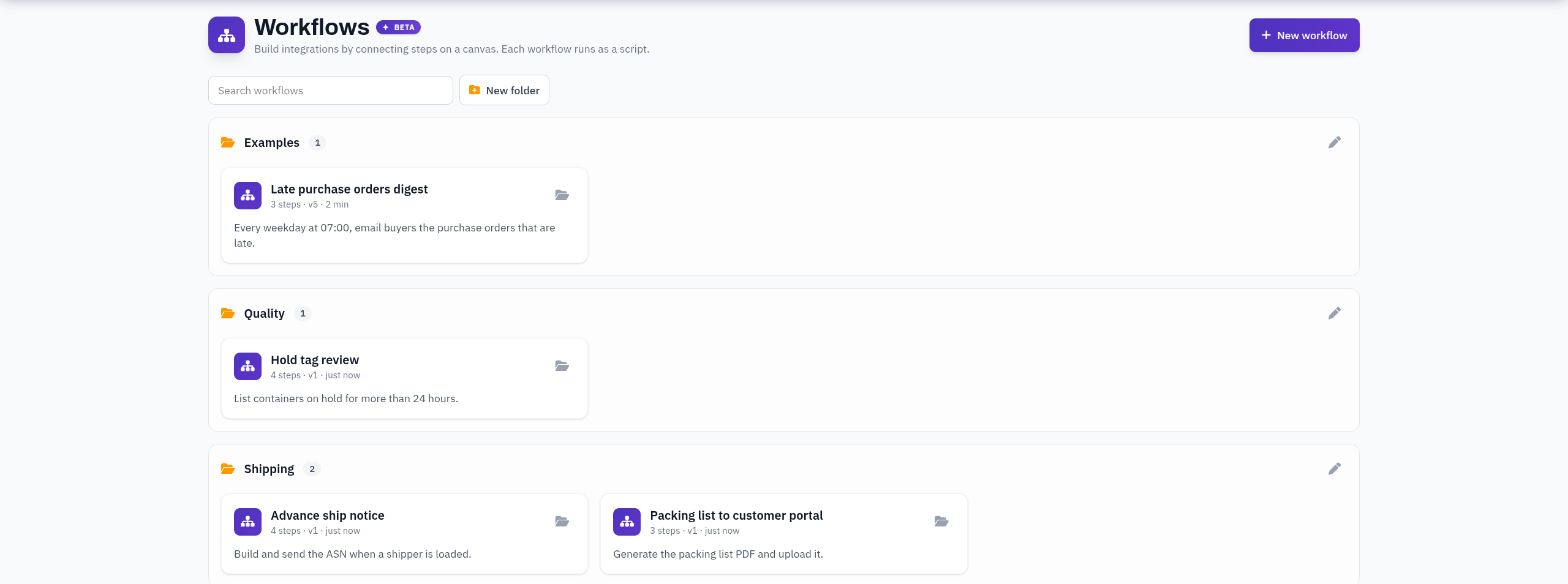
Creating a workflow
- Click New workflow.
- Give it a Name. Names must be unique across your workflows and scripts.
- Optionally pick or type a Folder. Leave it empty for no folder.
- Click Create. The editor opens.
Folders
- Create a folder: click New folder and type a Folder name (a name cannot contain /). A new folder stays in your browser until you move a workflow into it.
- Move a workflow: drag its card onto a folder (open or closed), or click its folder button (Move to folder), choose a folder or No folder, or type a new folder name, and click Move.
- Rename a folder: click the pencil on the folder's header. Every workflow in the folder moves with it. Leave the name empty to take them all out of the folder.
Folders open and close with a click; the list remembers which ones you left open, in this browser. The workflows in a folder are sorted by name, and No folder comes last.
Searching
Type in Search workflows. A workflow matches when every word you type appears in its name, description or folder. Folders with no match are hidden while you search.
Duplicating and deleting
Open the workflow and use the ⋮ menu in the editor's toolbar:
- Duplicate workflow asks for a name for the copy and puts it in the same folder.
- Delete workflow removes it after you confirm. Its schedules and API calls stop working, and what saving had set up to start it (its schedule, file watch, hook or tag watch, failure alert) is removed.
Where to go next
- The workflow editor: the canvas, the step panel, settings and saving.
- Triggers: what starts a workflow.
- Step reference: every step.
- Expressions: using data from the run in step fields.
- Testing workflows: safe test runs, pinned data and breakpoints.
- Workflows in production: schedules, API calls, run history and alerts.
- Workflows and JavaScript.