Copying and moving items to Sites
Send the items you built in the parent to your Sites, keep them up to date, or move them for good.
Nothing is shared live between companies. To give a Site something the parent built, you send it a copy. To hand an item over completely, you move it.
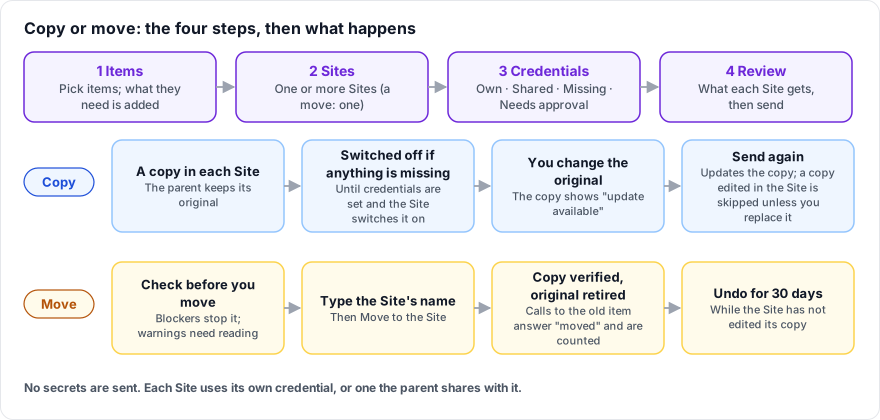
Who can do this: a person whose home company is the parent and who holds DataMagik - Builder there. You can send an item to each Site where you are also a Builder or an administrator (a parent administrator is an administrator of every active Site). You can only send items you can see under their own item permissions. Move is for administrators only. Site admins cannot pull items from the parent.
What you can send
App menu folders, document and email templates, lookup tables, scripts, AI assistants, schedules, ODBC queries, email intakes, FTP connectors, file system connectors, automations, dashboards, apps and OCR profiles.
- Only the current version is sent. History, drafts and approval records stay in the parent.
- No secrets are sent. Items refer to credentials by name. Each Site uses its own credential, or one the parent shares with it.
- Not carried by a copy: Excel links, public links, item permissions and menu placement. The Site sets these up again.
- Schedules, connectors and email intakes always arrive switched off.
- Everything else, such as printers and serial number series, stays in the parent. When an item needs one, the wizard lists what Each Site must already have.
Copy items to Sites
In the parent, open Admin → Sites and choose the Copy to Sites tab.
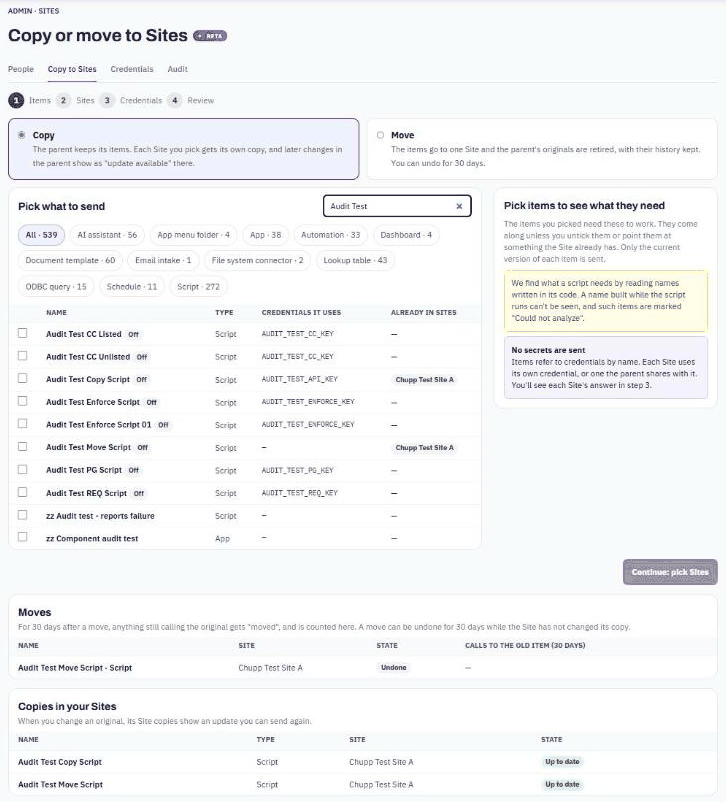
- Items. Leave Copy selected. Tick the items to send. Use the type filters and Search by name to find them. Items that were already moved to a Site are not listed.
- The panel on the right shows what the items need to work, such as a lookup table a script reads, with why each one came along: N selected, N more needed. Untick anything the Site already has.
- For a lookup table, choose Copy it, without rows, Copy it, with its rows, or Use each Site's own "name".
- DataMagik finds what a script needs by reading the names written in its code. A name the script builds while it runs cannot be seen, so the item shows Could not analyze. Add what it needs by hand.
- Sites. Tick one or more Sites. Press Continue: credentials.
- Credentials. Under Check credentials in each Site, each credential the items use shows, per Site:
If anything is missing, the Site's copies arrive switched off: they will not run until the credentials are set and someone in the Site switches them on. Press Continue to review.Chip Means Own The Site has its own credential with that name. Shared The parent shares one of its Plex logins with the Site. See Sharing credentials with Sites. Missing The Site has nothing by that name yet. Needs approval The Site's credential is limited to listed items, so its stewards must approve the copy's use of it. Left for the Site's admin The Site's admin will finish it on their setup checklist. - Review. See what each Site will get, such as New copy, Updates the copy or Up to date. Press Copy to N Site(s).
If a send fails part way, what arrived stays switched off and is marked failed. Use Remove what arrived in Site to clear it.
Finishing in the Site
The Site's admin opens Admin → Site setup in the Site. Finish setting up Site lists the credentials the items need, the items, and anything Waiting for a steward or Waiting for your parent company. Parent administrators can finish these too.
Keep copies up to date
The Copies in your Sites list at the bottom of the Copy to Sites page shows every copy and its state:
- Up to date: the copy matches the parent's original.
- update available: you changed the original since you sent it. Press Send again.
- edited in Site: the Site changed its copy.
Sending again updates the existing copy instead of making a second one:
| Item | Sending again |
|---|---|
| Script, app | Adds a new version to the copy. |
| Document or email template | Adds a new version. If the Site has an approval workflow, the review shows New version for the Site to approve. |
| Dashboard | Replaces it, keeping the old version in its history. |
| Automation, ODBC query, schedule, assistant, connector, email intake, OCR profile, menu folder | Replaces it after you confirm the change (Replaces the copy: confirm). |
| Lookup table | Updates its structure only. The Site's rows are never overwritten. |
A copy the Site has edited is skipped (Skipped: edited in the Site) unless you press Replace anyway.
Move items to a Site
Who can do this: an administrator of the parent and of the Site (a parent administrator is both).
A move hands items to exactly one Site. The Site gets a copy, and the parent's original is retired, with its history kept. You can move scripts, document templates, lookup tables, ODBC queries, dashboards, apps and automations. Other kinds can be copied but not moved.
- On the Copy to Sites tab, choose Move, tick the items and pick the one Site.
- Check before you move lists:
- Blockers, which stop the move: something staying in the parent still uses the item (a schedule, another automation, a dashboard button, an Excel link and so on), an approval is in progress on it, or it was already moved.
- Warnings, which you must read: the item could not be analyzed, it was called in the last 30 days, Excel or public links and permissions will not carry over, or a credential is not ready in the Site.
- Tick I have read the warnings, type the Site's name, and press Move to Site.
The original is retired only once the copy is verified: it exists in the Site, matches what was sent, raised no warnings and is switched on. Until then the move shows Copied, waiting to finish; press Finish the move when it is ready.
After a move, anything that still calls the original gets the answer that it moved, and is counted in the Moves list under Calls to the old item (30 days). Use it to find the callers nobody knew about, and re-issue Excel and public links from the Site.
Undo a move
For 30 days, while the Site has not edited its copy, press Undo on the move. The original is switched back on in the parent and the Site's copy is retired. A moved item's name stays reserved in the parent for 90 days.
Before you move: tell the people who use the item. Excel workbooks, public links and kiosk screens point at the parent's item and stop working until they are re-issued from the Site.
Troubleshooting
A Site is missing, or sending to it is refused
You can send only to Sites where you hold DataMagik - Builder or are an administrator. Ask for Builder in that Site, or ask a parent administrator to send it. A move always needs an administrator.
The copy arrived but does not run
It arrived switched off because a credential was missing or waiting for approval. In the Site, open Admin → Site setup, finish the credentials, then switch the item on.
Update available never goes away
The Site edited its copy, so it is skipped. Use Replace anyway if the parent's version should win.