The Drawing panel in Plex
The Drawing panel in Plex
Add a Drawing tab to Plex screens, so people see the drawing for the part they are working on without leaving Plex.
With the DataMagik browser extension, a Drawing tab sits on the right edge of the Plex screens you choose, and a Drawing button appears on the DataMagik bar. Either one slides out the drawing viewer for the part the screen shows, at its current Plex revision.
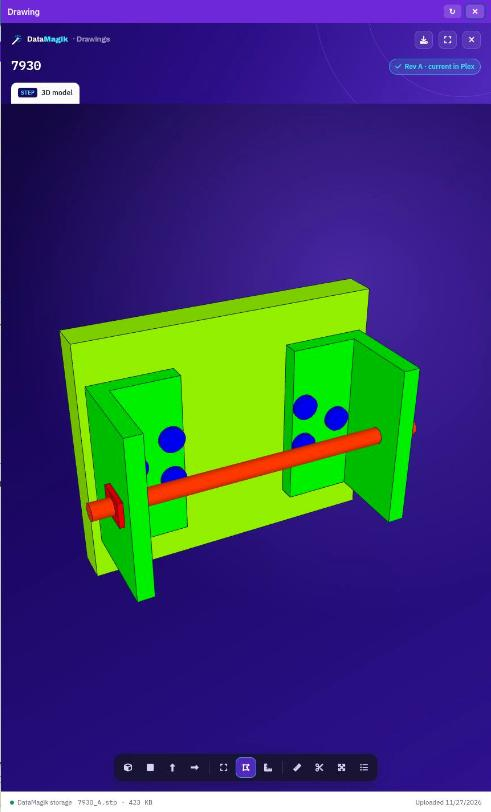
The Drawing panel over a Plex part screen, opened on the part's current revision.
Before you start
- The DataMagik browser extension is installed and signed in. See Browser Extension.
- The company holds the CAD Drawings license, and drawings are uploaded. See Upload and manage drawings.
- To bind the panel you need DataMagik - Builder.
Bind the panel to a Plex screen
- Open Automations and press Add Automation. Name it, for example "Drawing".
- Under Linked Screens, enter the screen's PCN and its App Path, the path of the Plex screen's address, then press Link Screen. For the Plex part detail screen this is
/Engineering/Part/ViewForm. - Press Add Action and choose the Action Type Drawing panel. Its name is the panel's title.
- In Plex parameter that carries the part, enter where the part comes from (below). This field is required.
- Press Create Action.
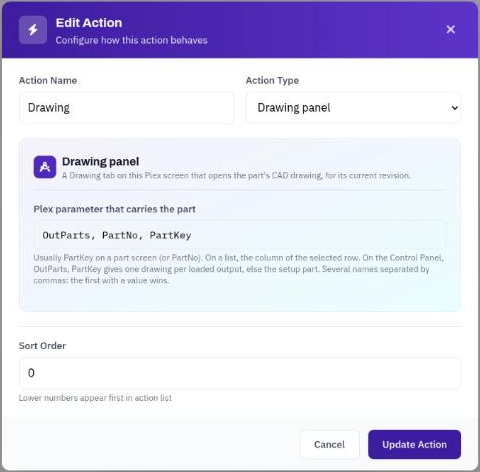
The Drawing panel action, here set up for the Control Panel.
Where the part comes from
The panel looks for the parameter in the screen's address, then in the first selected row of a list, then in the data the Plex screen itself loaded. Capital letters do not matter.
- A part screen:
PartKey(the Plex part key) orPartNo. An all-digit value of a parameter whose name ends in Key is read as the part key; anything else is read as the part number. - A list of parts: the column of the selected row that holds the part key or number.
- The Workcenter Control Panel and Record Production: enter
OutParts, PartNo, PartKey. The panel shows a chip for each of the loaded job's parts, and opens the first one that has a drawing. If the job lists no outputs, it opens the setup part.
Several names separated by commas are tried in order, and the first with a value is used.
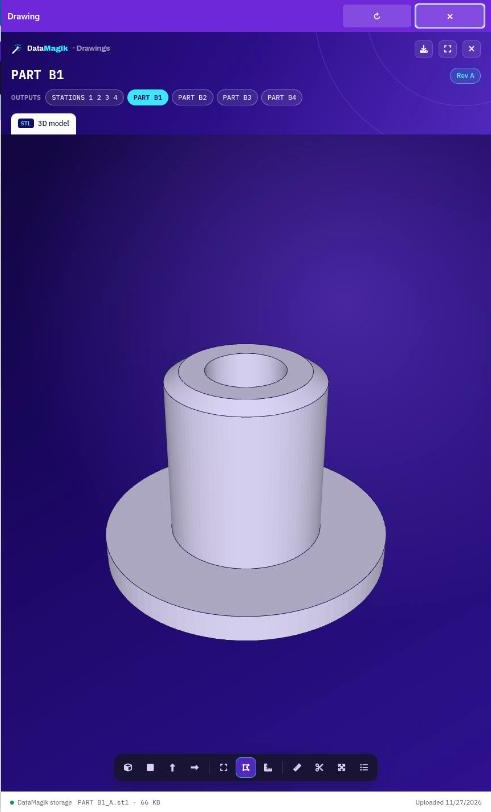
On Record Production, a chip for each of the job's parts.
Component parts in Source Inventory
On Record Production, the Required Source Inventory dialog shows a card for each component part the job uses. Where the Drawing panel is bound to Record Production, each component card has a Drawing button just below it. Press it to open the drawing for that component; pressing it does not load the component. The panel shows the drawing for the component's current Plex revision.
Who sees the tab
The tab and the button show only for people with CAD Drawings - View or CAD Drawings - Admin, at a company that holds the CAD Drawings license. If you link permissions to the automation with Link Permission, only people who hold one of them see it.
What people see
- The panel opens on the part's drawing for its current Plex revision; the pill at the top right says which revision is shown.
- When Plex moves to another part, the panel follows.
- The panel's close button, or Esc, closes it.